News

Why Do Portable Monitors Make Travel Work Easier?

2025-12-25 0 Leave me a message


Abstract

If you’ve ever tried to juggle spreadsheets, calls, and notes on one laptop screen, you already know the pain: constant window switching, cramped reading space, and a posture that slowly turns into a pretzel. Portable Monitors are designed to solve that exact problem—giving you a second display you can carry, power, and connect with minimal friction. This article breaks down what matters (and what’s marketing fluff), shows how to set up different devices, lists common mistakes to avoid, and provides a simple checklist you can use before you buy.


Table of Contents


Outline

  • Define the problems: productivity drag, ergonomics, collaboration, and travel constraints.
  • Explain how Portable Monitors reduce friction and improve workflow.
  • Give a buyer checklist with clear “look for / avoid” criteria.
  • Provide real setup paths for common devices and scenarios.
  • Offer troubleshooting, maintenance, and sourcing guidance.

The real pain points a second screen fixes

1) “I’m constantly alt-tabbing” fatigue

When your email, spreadsheet, meeting window, and notes fight for the same screen, you lose time in tiny chunks. Over a week, those chunks add up. Portable Monitors let you keep one app “always visible” (chat, reference docs, dashboards) while you work on the main screen.

2) Remote calls + multitasking without looking chaotic

If your call stays on screen A and your agenda/notes stay on screen B, you don’t have to “hunt” for the right window. It feels calmer, more professional, and you’re less likely to miss details.

3) Ergonomics on small tables

A second screen can reduce the “hunched-in” posture that happens when you cram everything into a laptop display. Pair it with a laptop riser and you can keep your neck and shoulders far happier during long sessions.

4) Collaboration in tight spaces

A lightweight external display makes it easier to show a client draft, a menu, a training video, or product visuals— without passing your laptop back and forth.


What a portable monitor actually is (and what it isn’t)

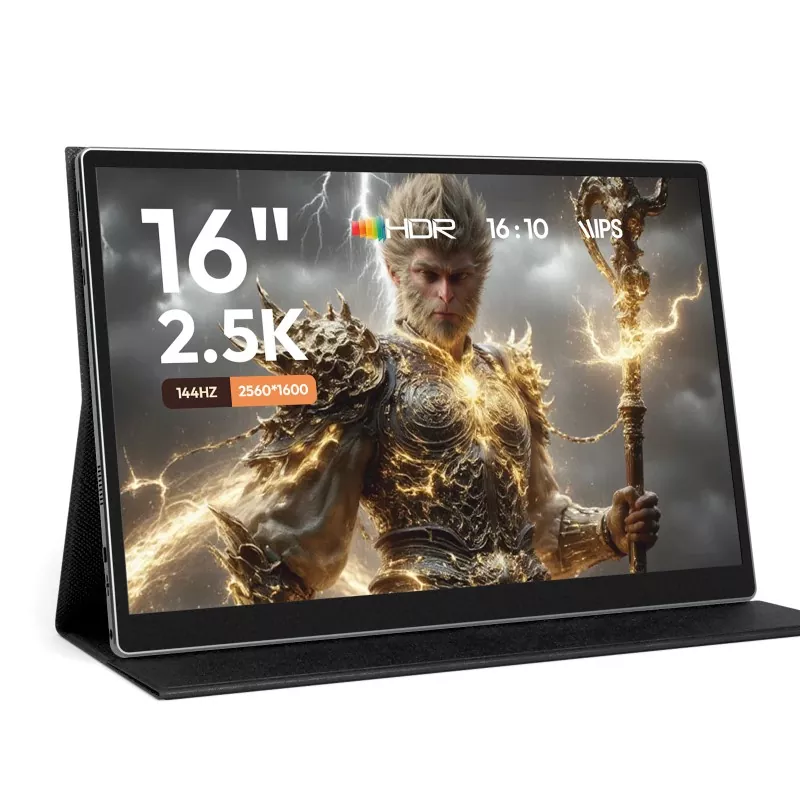
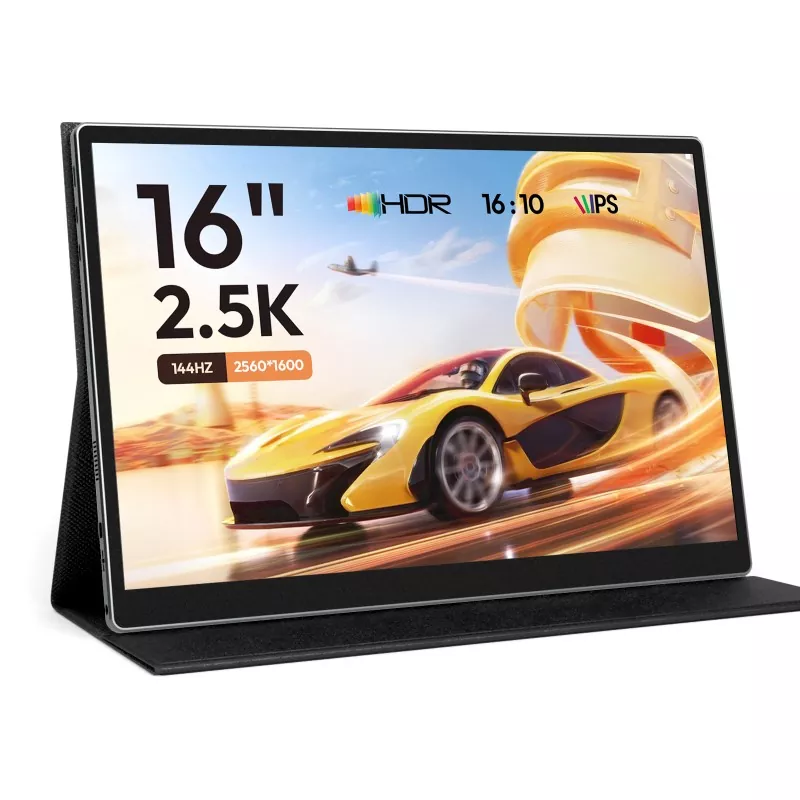
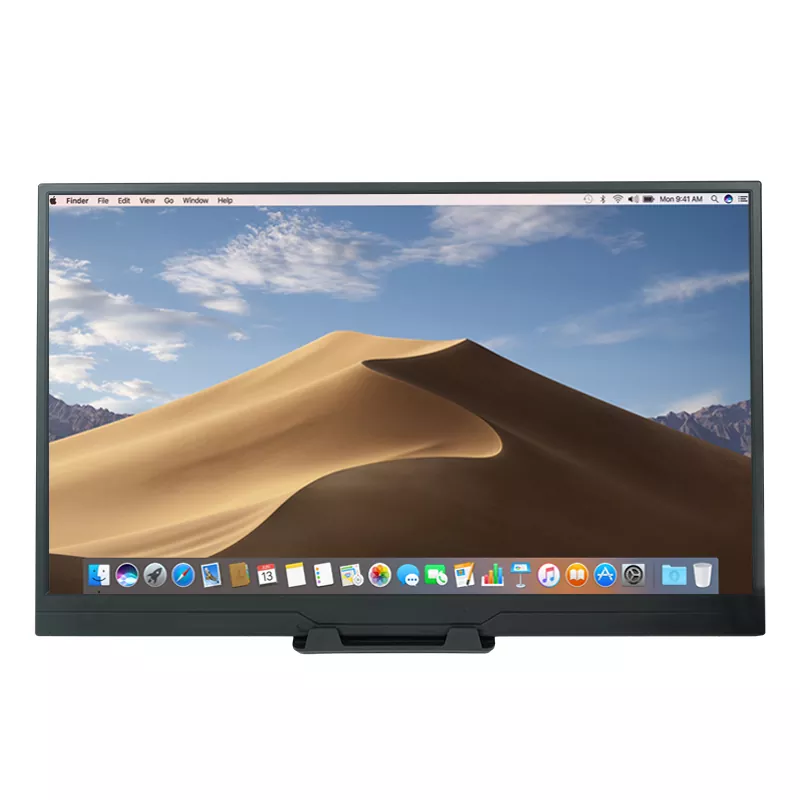
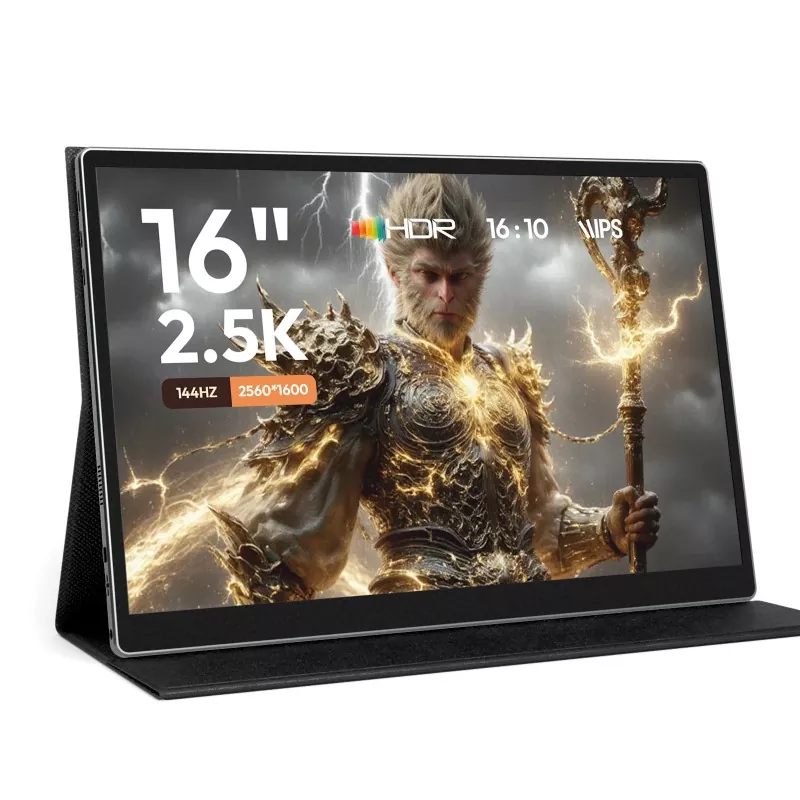
Portable Monitors

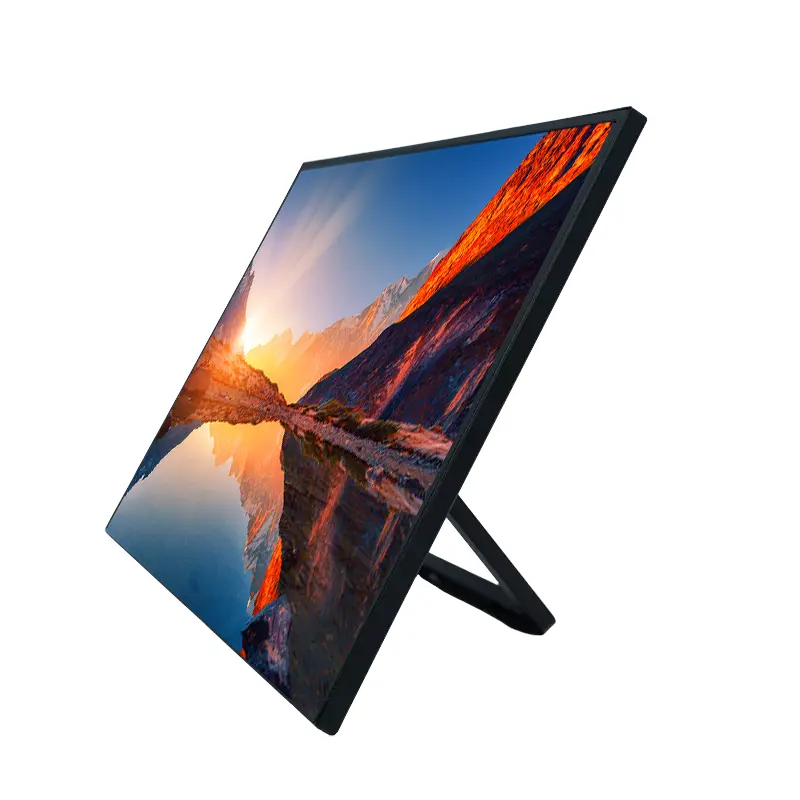
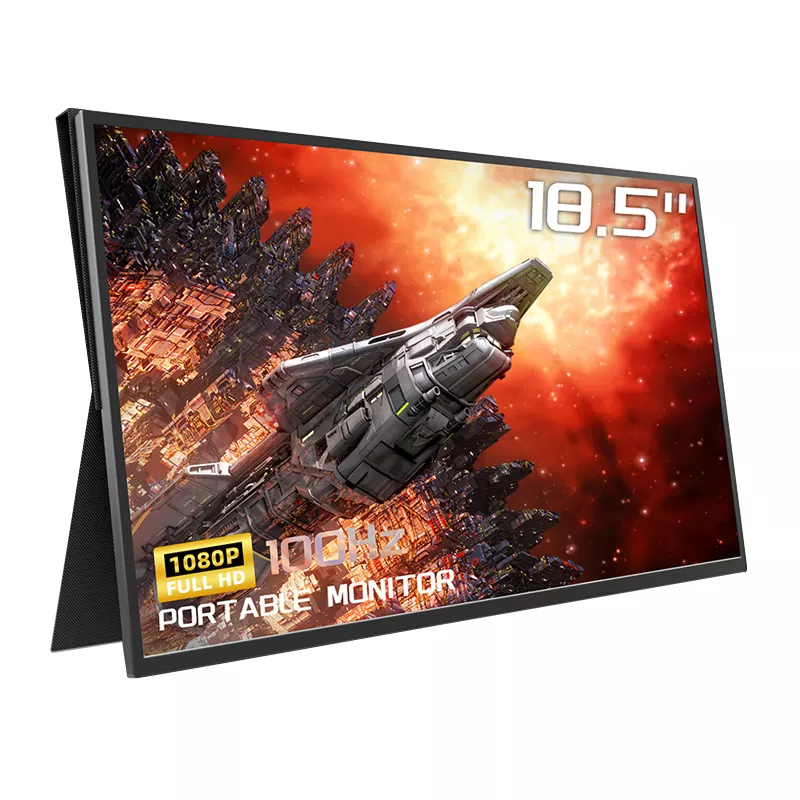
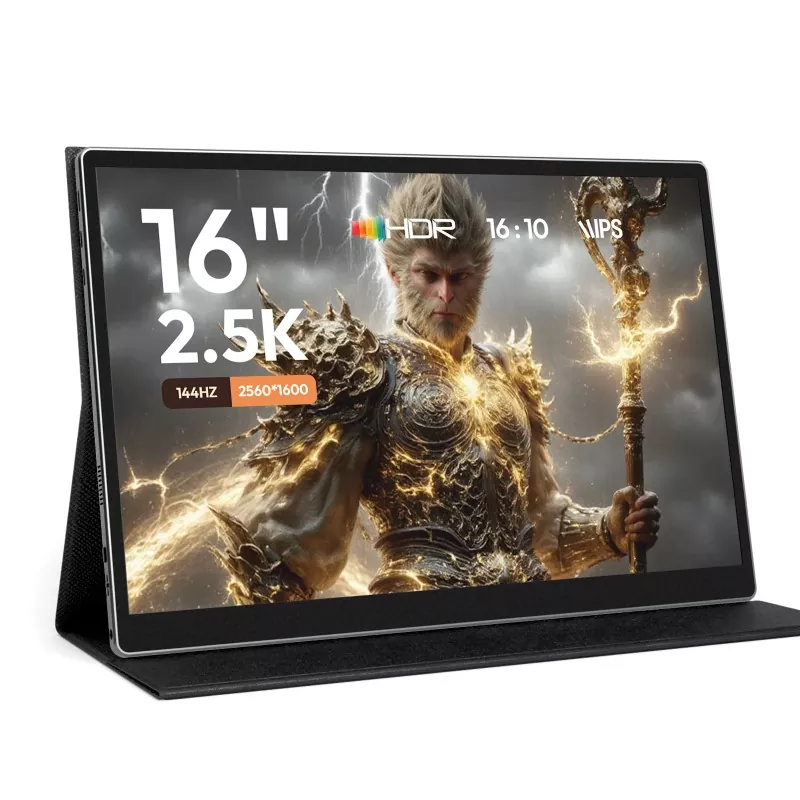
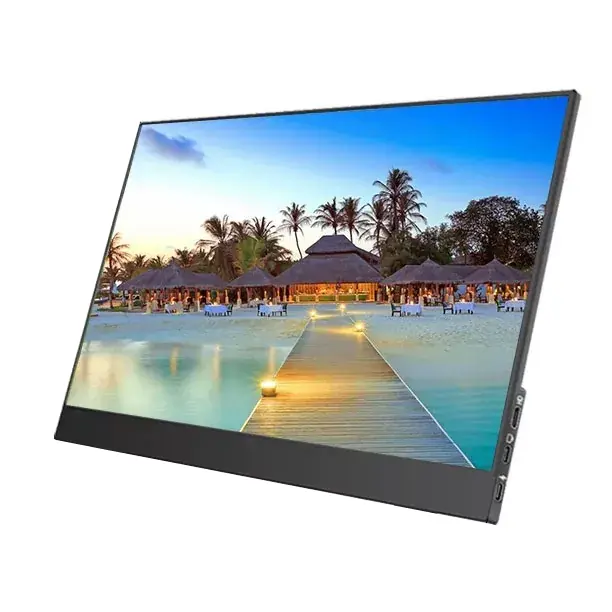
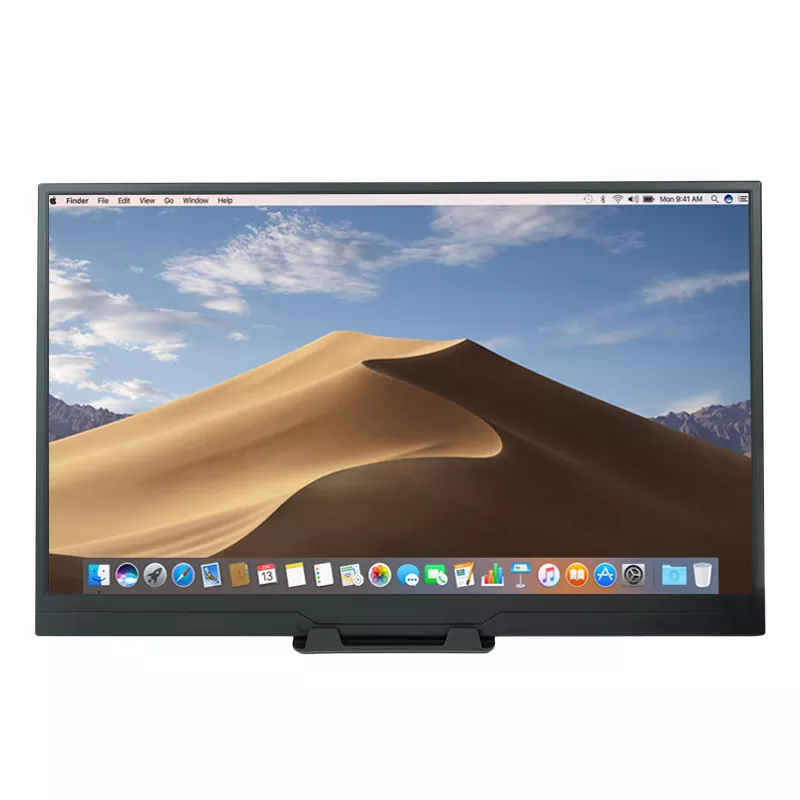
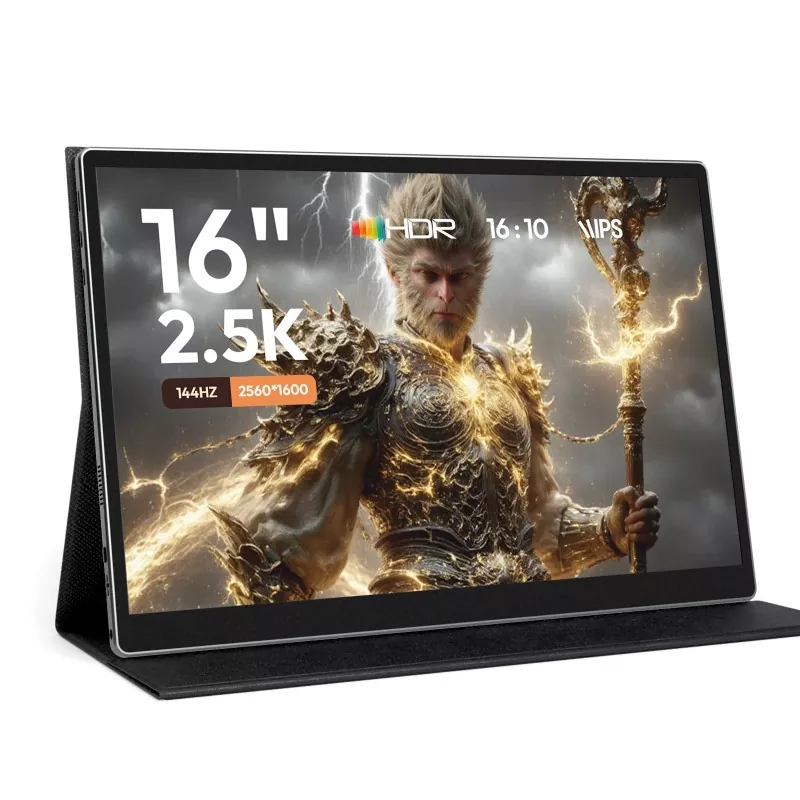
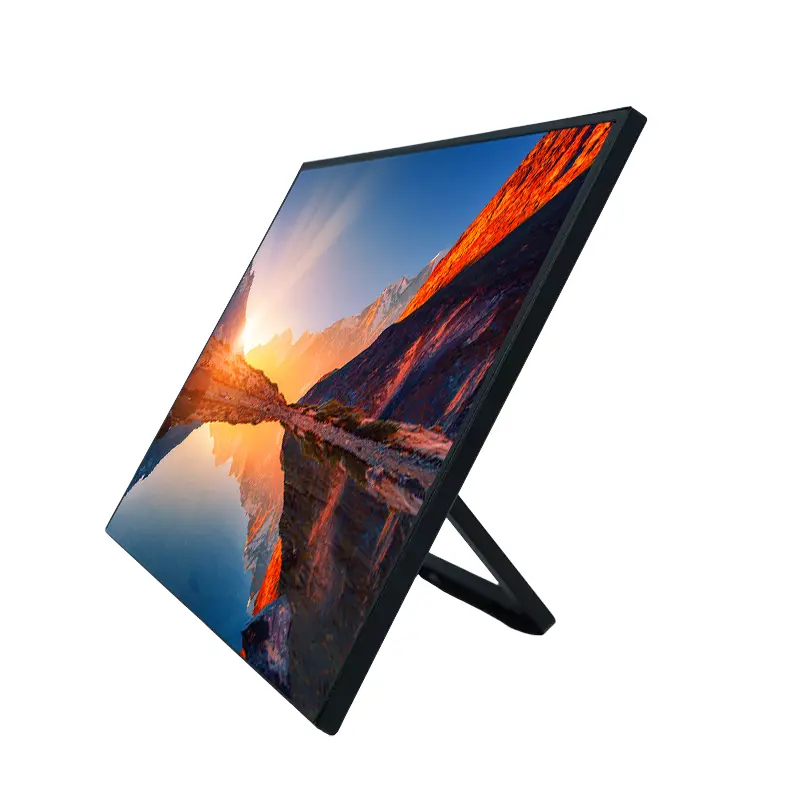
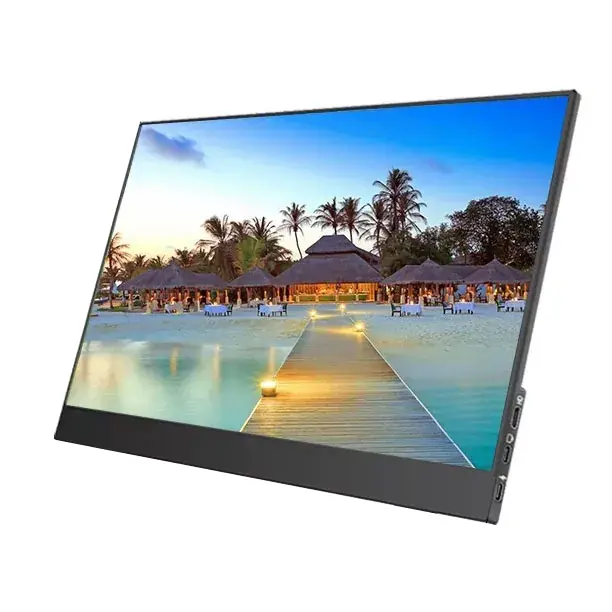
In plain terms, Portable Monitors are thin external displays built for mobility: they’re designed to be lightweight, quick to connect, and easy to power (often through a single USB-C cable when your device supports it). They can act like a second desktop monitor, but the priority is portability and simplicity.

Common misconception

“It will work with anything.” Not always. The biggest compatibility trap is USB-C: some USB-C ports carry video (DisplayPort Alt Mode), while others are power/data only. Knowing your device’s port capabilities prevents 80% of setup frustration.


What to look for when buying

Here’s a practical checklist you can use before spending money. The goal is to match the monitor to your real-life workflow, not a spec sheet fantasy.

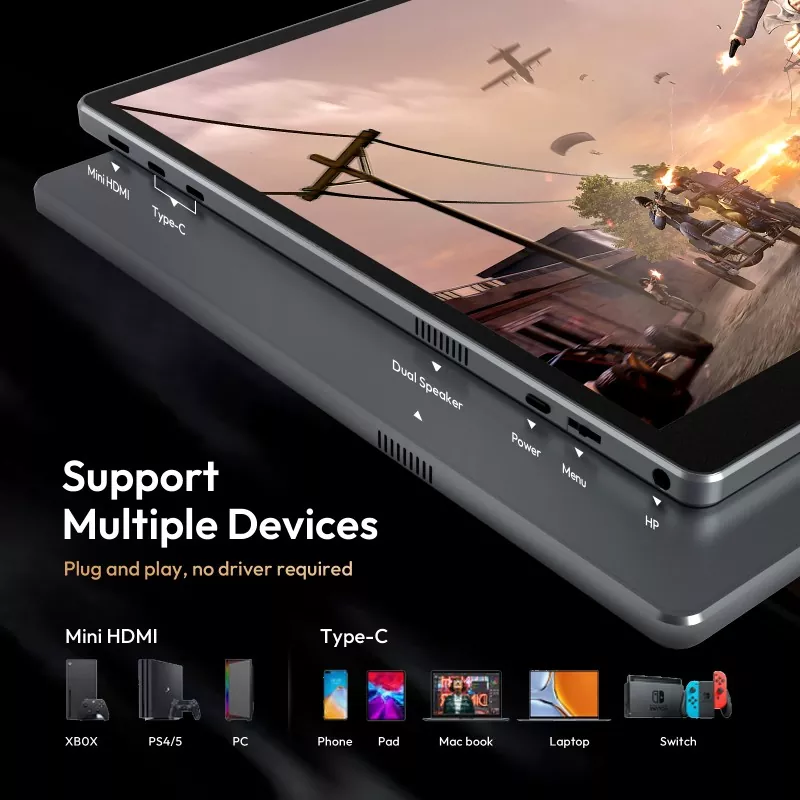
  • Connection: Prefer USB-C with video support; check if HDMI is included for broader compatibility.
  • Power behavior: Can it run from the same USB-C cable, or does it require extra power in many cases?
  • Screen size: 13–16 inches is the “sweet spot” for travel; bigger screens can be great but less portable.
  • Resolution: Full HD is enough for most; higher resolution helps text clarity but may increase power draw.
  • Brightness and glare: If you work near windows, brighter panels and good coatings matter.
  • Stand/cover design: A stable stand is not optional. Wobbly support makes the whole experience annoying.
  • Orientation support: If you code, write, or read long docs, portrait mode can be a game changer.
  • Touch (optional): Useful for demos, quick navigation, and some tablet workflows—unnecessary for many.
  • Audio (optional): Built-in speakers are often “okay in a pinch,” not a replacement for headphones.
  • Warranty and support: A real vendor with clear support beats a random listing when something goes wrong.

Quick comparison table for features that matter

Feature What to look for Why it matters Red flags
USB-C video USB-C that supports video input One-cable setup is faster, cleaner, and easier on the go Vague wording like “Type-C supported” with no video mention
HDMI option Mini/micro HDMI (with cable) or full HDMI Works with more laptops, consoles, and adapters HDMI requires a special cable not included and hard to replace
Brightness Enough for your environment Dim screens are painful in bright rooms Looks fine indoors, unusable near windows
Stand/cover Stable angles, firm hinge, non-slip base Stability equals comfort and fewer accidents Wobbles when typing or touching the screen
Color and viewing angle Consistent image off-axis Helps with design review and shared viewing Colors shift drastically when you move slightly
Weight and thickness Comfortable to carry daily True portability means you actually bring it Feels like carrying a second laptop everywhere

Setup guide for laptops, phones, tablets, and consoles

Setup path A: Laptop + USB-C (best-case scenario)
  1. Confirm your laptop USB-C supports video output (often DisplayPort Alt Mode).
  2. Connect one USB-C cable from laptop to monitor.
  3. Set display mode: extend (recommended), duplicate, or second-screen-only.
  4. Adjust scaling so text looks natural (especially on smaller screens).
Setup path B: Laptop/PC + HDMI (broad compatibility)
  1. Connect HDMI from device to monitor.
  2. If the monitor needs extra power, plug in USB power (wall adapter or power bank).
  3. Select HDMI input on the monitor if needed.
  4. Open display settings to arrange screen order and orientation.
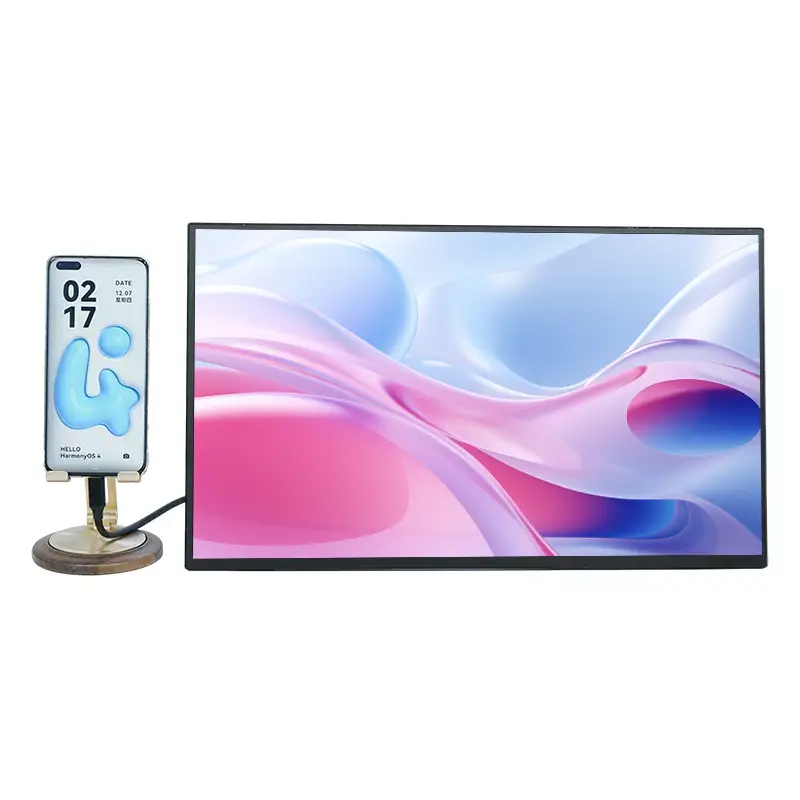
Setup path C: Phone/Tablet (when supported)
  • Some devices can output a desktop-like mode; others only mirror or need an adapter.
  • Use USB-C to USB-C if your device supports video out; otherwise consider HDMI adapters.
  • For longer sessions, use a powered hub or power delivery to keep your device charged.
Setup path D: Console (gaming in small spaces)
  • HDMI is usually the straightforward route.
  • Bring headphones if you’re playing in shared spaces; monitor speakers are rarely immersive.
  • Check refresh rate support if you care about smoother motion.

Use-case playbook

Portable Monitors shine when you choose specs based on your actual day-to-day needs. Here are common “profiles” you can copy.

Remote work and meetings
  • Keep the call window on the portable screen, notes on the main screen.
  • Prioritize easy connection, stable stand, and comfortable brightness.
  • Bonus: portrait mode for agendas and long docs.
Creators and designers
  • Prioritize consistent color and viewing angles.
  • Use it for tool panels, references, and previewing deliverables.
  • Consider resolution and panel quality over ultra-low weight.
Sales demos and field work
  • Use the second screen to face the customer while you control content from your laptop.
  • Prioritize durability, fast setup, and good readability.
  • Touch can be helpful for quick navigation.
Students and study sessions
  • Lecture video on one screen, notes and slides on the other.
  • Look for portability and low power draw for library days.
  • A stable stand matters more than you think.

Travel durability and care tips

A simple packing list that prevents heartbreak

  • A dedicated sleeve (even a thin one) to prevent scratches.
  • One short USB-C cable + one backup cable (cables fail at the worst moments).
  • A compact power adapter or power bank if your setup often needs extra power.
  • A small microfiber cloth (no paper towels—seriously).

Treat the panel like a phone screen: pressure, grit, and careless stacking in a bag are the real enemies. If your workflow includes cafés, trains, and coworking spaces, a sturdy cover/stand design becomes part of “performance.”


Troubleshooting: the 10-minute fixes

  1. No signal on USB-C: Try a different USB-C port; confirm your device supports video over USB-C.
  2. No signal on HDMI: Confirm correct input and cable type; reseat both ends.
  3. Screen is dim: Increase brightness on the monitor; check if it’s underpowered.
  4. Flicker or random disconnects: Swap cables; avoid loose hubs; try direct connection.
  5. Wrong scaling/text too small: Adjust display scaling in system settings.
  6. Portrait mode feels “off”: Rotate orientation in display settings; rearrange display order.
  7. Touch not working: Some touch models need a USB data connection in addition to video.
  8. No sound: Set audio output device in your OS; remember speakers may be basic.

Sourcing and vendor questions 

Portable Monitors

When you’re investing in Portable Monitors, you want evidence that a product is supported, consistently built, and honestly described.

Questions that separate “real supplier” from “random listing”
  • What devices have been tested for compatibility (and what limitations are known)?
  • What is the warranty coverage and process?
  • Which cables and accessories are included?
  • What quality checks are performed before shipment?
  • Is there documentation for setup and troubleshooting?

If you’re sourcing for projects, teams, or bulk needs, working with an established manufacturer can simplify everything: consistent specs, clearer documentation, and accountable support. Shenzhen Sixing Technology Holding Co., Ltd. is one example of a company focused on portable display products—so buyers can align model choices with real deployment needs (travel kits, sales demos, hybrid offices, education setups) instead of guessing.


FAQ

Q: Do Portable Monitors work with any USB-C cable?
A: Not always. Many USB-C cables carry power/data but not video. For one-cable video, your device must support video output over USB-C and your cable must support it too.

Q: Is a portable monitor worth it if I already have a tablet?
A: A tablet can help, but it’s not the same as a true second display for your laptop workflow. If your pain is window switching, an external monitor usually feels more “native.”

Q: What size is best for travel?
A: For most people, 13–16 inches balances readability with carry comfort. If you fly often, lean smaller; if you drive or stay longer in one place, a slightly larger screen can be nicer.

Q: Do I need high resolution?
A: Full HD is great for email, docs, and dashboards. Higher resolution can be better for dense text and design work, but check scaling and power needs.

Q: Can I use one with a game console?
A: Yes, HDMI setups are common for consoles. Just plan for power and audio (headphones help a lot).

Q: Will it drain my laptop battery?
A: It can, especially in one-cable mode. If you’re working long hours away from outlets, consider a power bank or a setup that supports power delivery.

Q: What’s the most overlooked feature?
A: The stand/cover. A great panel with a bad stand becomes an everyday annoyance.

Q: How do I avoid compatibility surprises?
A: Verify your device’s port capabilities (USB-C video or HDMI) before you buy, and choose a monitor that supports your most reliable connection method.


Wrap-up and next steps

The best Portable Monitors don’t just “add a screen”—they remove friction. Less window juggling. Better posture. Cleaner meetings. Easier demos. The trick is matching connection and power behavior to your real devices, then prioritizing stability and readability over hype.

If you’re comparing models or planning a bulk purchase for teams, tell us your device types and use cases (remote meetings, travel work, sales demos, classrooms, or gaming setups). We’ll recommend a practical configuration and accessory set that minimizes compatibility headaches—contact us to get a tailored suggestion.

Back to top

Related News
Leave me a message
X
We use cookies to offer you a better browsing experience, analyze site traffic and personalize content. By using this site, you agree to our use of cookies. Privacy Policy
Reject Accept