News

Which 16 Inch Portable Monitor Makes a Work-Anywhere Setup Actually Comfortable?

2026-01-21 0 Leave me a message

Abstract
A 16 Inch Portable Monitor sounds simple—until you buy one and discover the real problems: the “one USB-C cable” promise doesn’t work with your laptop, the brightness is too weak near a window, the stand wobbles, colors look off for design work, or your phone can’t output video at all. This guide breaks down the most common buyer pain points and gives a practical checklist you can use before you order (and after it arrives). You’ll also see setup tips, troubleshooting fixes, and a quick comparison table to help you choose confidently. This article references everyday use cases and procurement questions we often hear when discussing portable displays from Shenzhen Sixing Technology Holding Co., Ltd.


Table of Contents


Outline

  • Identify the real-world problems buyers face (compatibility, power, brightness, stability, color, and audio).
  • Match the 16-inch size to the right scenario (travel, hybrid office, coding, spreadsheets, content review, and demos).
  • Use a pre-purchase checklist that avoids the most common returns.
  • Follow a quick setup flow for laptops, tablets, and phones.
  • Fix “No Signal” and power-related issues with simple steps.

What frustrates buyers after they purchase a 16-inch portable monitor?

Most complaints aren’t about the screen size—they’re about the “small details” that turn into daily annoyance. If you’ve ever bought a portable display and felt instant regret, it usually comes down to one of these:

  • USB-C confusion: Many devices have USB-C ports that charge but don’t output video. Buyers plug in one cable, see nothing, and assume the monitor is broken.
  • Not enough power: A portable monitor can run from a laptop, but brightness may drop or flicker if the laptop’s port can’t provide stable output.
  • Dim in real environments: It looks fine in a room at night, then you try it near daylight and suddenly you’re squinting.
  • Wobbly “cover stand”: Some folio stands slide, collapse, or can’t hold a good angle on soft surfaces (bed, couch, airplane tray).
  • Color mismatch: Designers and marketers notice right away when reds look dull or whites look too warm/cool.
  • Audio disappointment: Built-in speakers—when included—are often “emergency only.” If you need audio clarity, you’ll want a better plan.
  • Accessory gaps: The monitor may ship with cables, but not the right cable for your specific use case (or you need an adapter you didn’t expect).

The good news: you can avoid almost all of this by checking a few specs and asking a few compatibility questions up front.


Who benefits most from a 16-inch size?

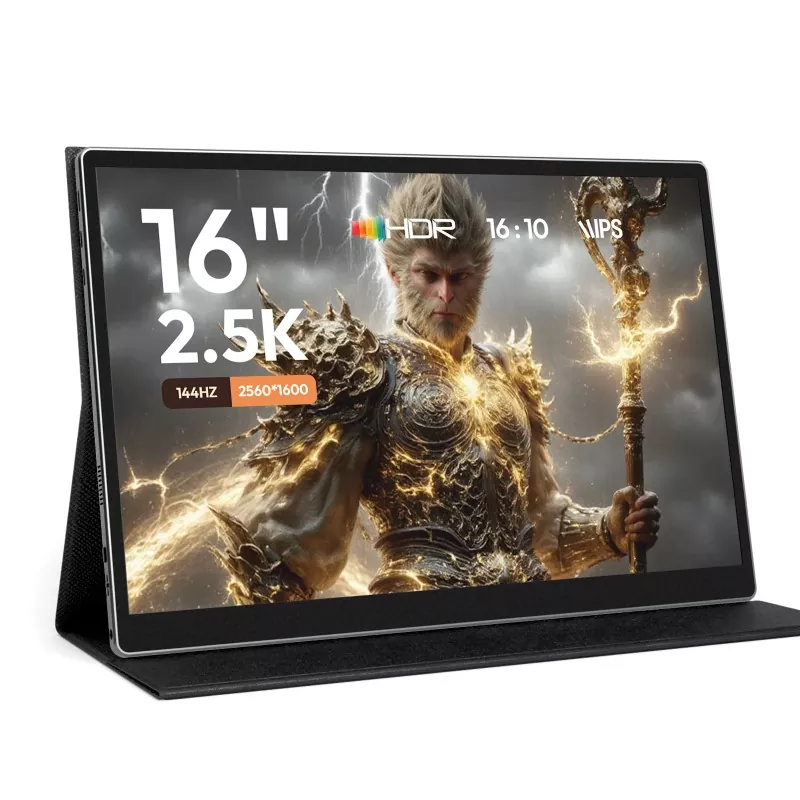
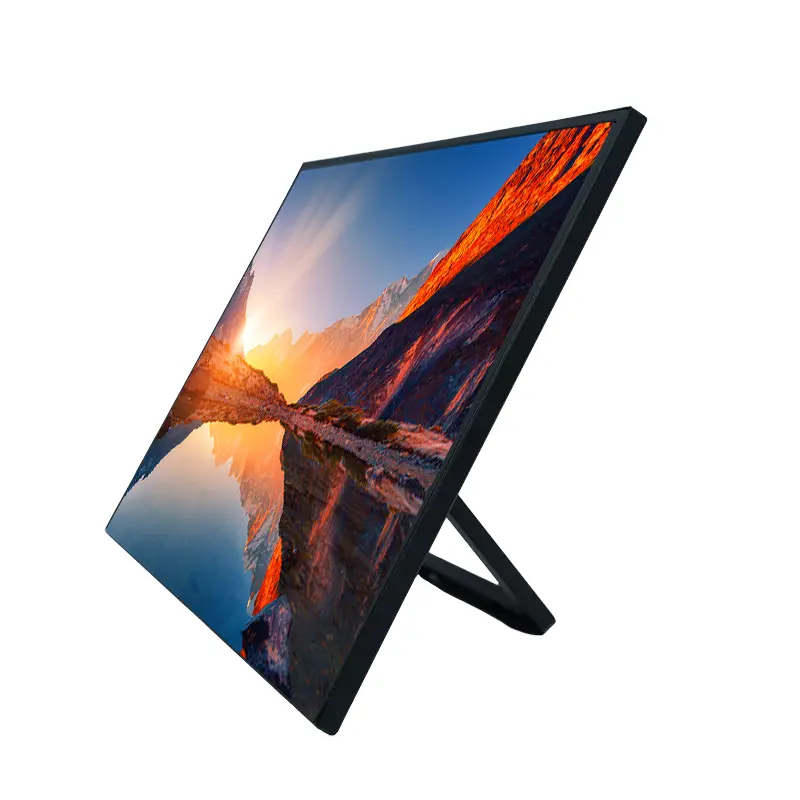
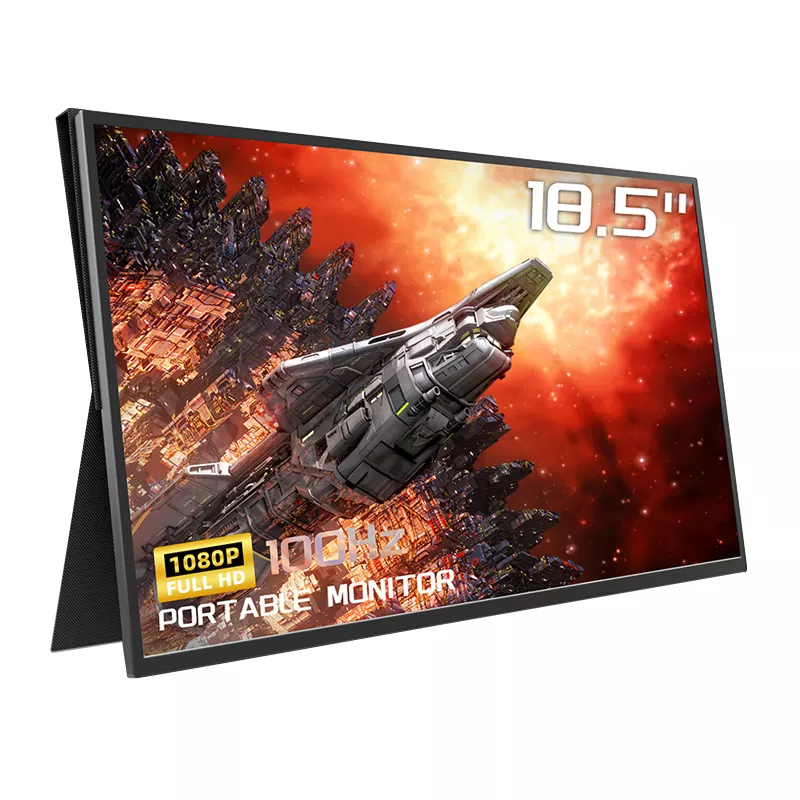
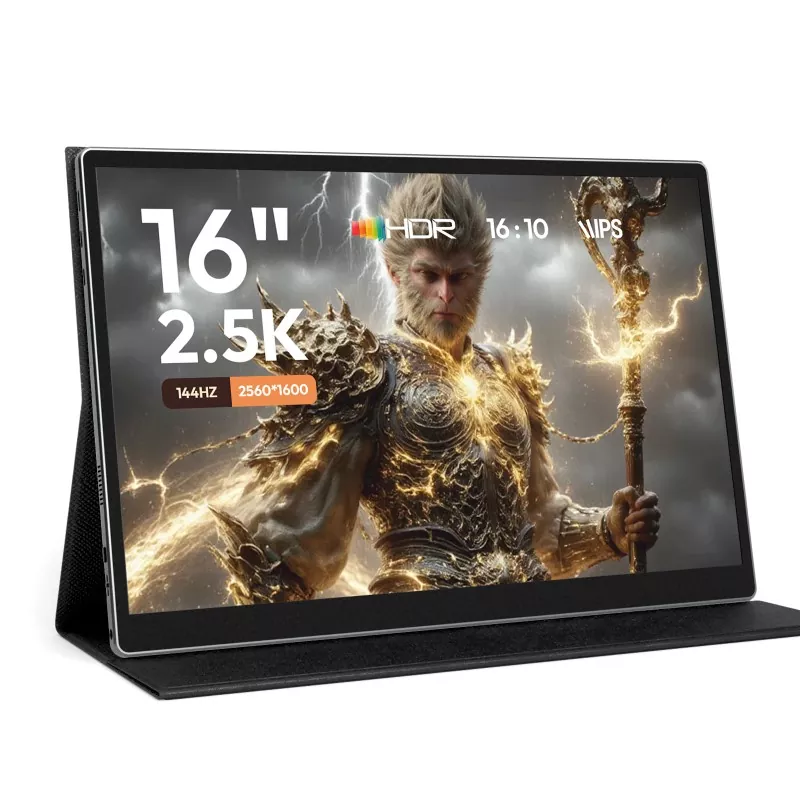
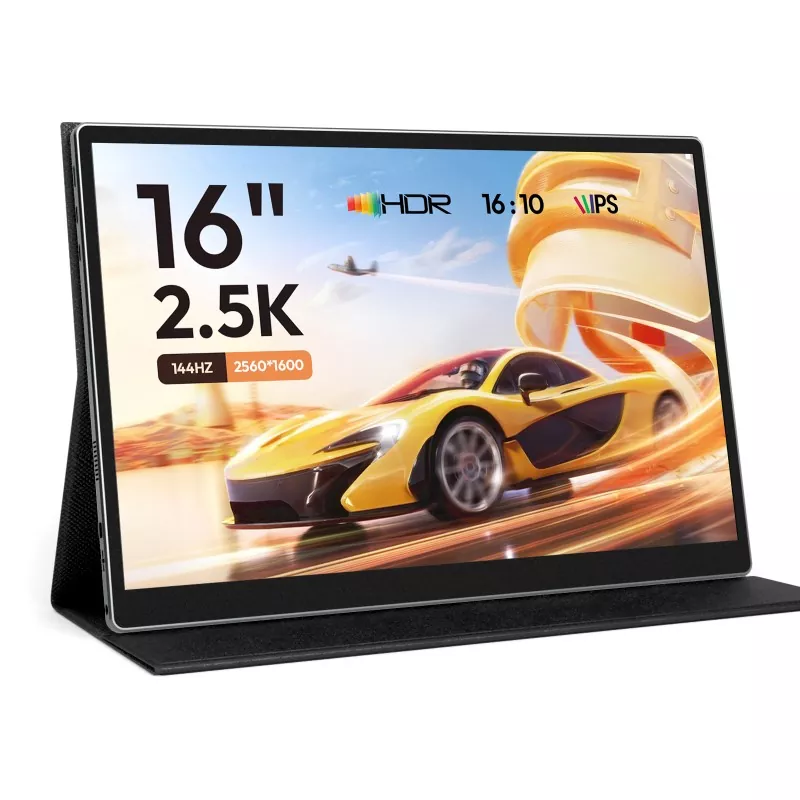
16 Inch Portable Monitor

A 16-inch portable display sits in a sweet spot: bigger than the “compact” travel screens, but still easy to slip into a backpack. It’s often chosen when you want real productivity, not just an occasional second screen.

  • Spreadsheet and dashboard work: More rows visible, less scrolling, and fewer mistakes when comparing columns.
  • Remote meetings: Keep the call on one screen and notes/documents on the other.
  • Coding and writing: A second panel for reference docs, terminal logs, or outlines makes long sessions less tiring.
  • Content review and approvals: Marketing teams can review layouts, ads, and presentations without crowding one laptop screen.
  • Client demos and trade shows: A portable monitor can act as a clean “presentation surface” without moving your main laptop around.

In product discussions at Shenzhen Sixing Technology Holding Co., Ltd., we often hear the same theme: buyers want a portable monitor that feels like a stable extension of their workstation—not a fragile gadget they babysit.


What should you check before you buy?

Use this checklist like a filter. If a portable monitor passes these checks, your odds of satisfaction jump dramatically.

  • Device compatibility: Confirm your laptop’s USB-C supports video output (often called DisplayPort Alt Mode). If not, plan to use HDMI (and ensure the monitor supports it).
  • Connection options: Ideally, you have at least two pathways: USB-C for video/power and HDMI for broader compatibility.
  • Power plan: Ask yourself: will you power it from the laptop, from a wall adapter, or from a power bank? If your work involves travel, having a reliable external power option matters.
  • Brightness and viewing environment: If you work near windows or on-site locations, prioritize a panel that can stay readable in brighter conditions.
  • Panel characteristics: For business and general productivity, clarity and viewing angles matter most. For creative review work, pay attention to color performance and consistency.
  • Stand stability: If it uses a folio cover, check whether it supports multiple angles and whether it’s firm enough for typing-heavy workflows nearby.
  • Weight and thickness: A 16-inch display that’s too heavy stops being “portable” in real life.
  • Protective design: Look for a screen surface and packaging approach that’s suited to frequent packing/unpacking.
  • Warranty and support clarity: Returns usually happen when setup feels confusing. Clear support documentation matters more than people admit.

Quick table: Pain point → what to look for → why it matters

Pain Point What to Look For Why It Matters
“No signal” over USB-C USB-C video support on your device; alternate HDMI input on the monitor Reduces setup failure and avoids unnecessary returns
Flicker / dim screen Stable power option (wall adapter or power bank) and efficient power usage Consistent brightness improves comfort and readability
Bad angles / unstable stand Firm multi-angle stand or compatible mounting approach Prevents neck strain and keeps the screen usable on different surfaces
Color looks “off” Clear panel description and intended use positioning (productivity vs creative review) Avoids frustration for design, photo, and brand work
Too many adapters Bundled cables that match real devices; straightforward port labeling Less friction on day one, fewer hidden costs
Audio is weak Plan for headphones/external speakers if audio matters Prevents disappointment in meetings, video review, or demos

How do you set it up fast on Windows, Mac, and mobile?

If you want the smoothest “plug in and go” experience, follow this order:

  • Step 1: Start with the simplest path: one USB-C cable from laptop to monitor.
  • Step 2: If it lights up but shows no image, switch to HDMI for video and use USB-C (or another power cable) for power.
  • Step 3: On Windows, open display settings and choose “Extend” (not “Duplicate”) for a true second screen experience.
  • Step 4: On macOS, check Displays and arrange screens; if you want the portable monitor to match color closer, calibrate or pick an appropriate profile.
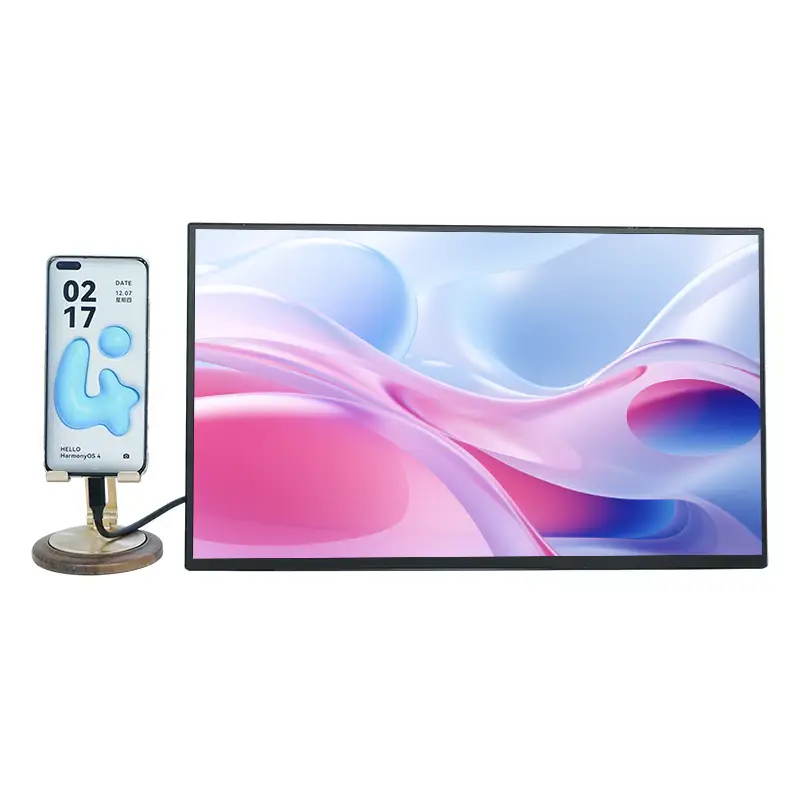
  • Step 5: For phones/tablets, confirm the device supports external display output. Some devices require specific modes or adapters.

Practical tip: if your workflow involves travel, pack a short “backup kit” (a known-good HDMI cable plus a small power adapter). It turns a stressful setup into a 30-second routine.


What if it shows “No Signal”?

This is the #1 moment where people get mad and blame the monitor. Most of the time, it’s a compatibility or cable pathway issue. Here’s the quick fix sequence:

  • Check your USB-C port: Try a different USB-C port on your laptop. Some ports are power-only.
  • Swap the cable: Not all USB-C cables support video. Use a cable designed for data/video, not just charging.
  • Switch input source: If the monitor supports multiple inputs, make sure it’s on the right one.
  • Try HDMI + power: Use HDMI for video and plug power separately. This bypasses USB-C video limitations.
  • Restart the handshake: Unplug both ends, wait a few seconds, then reconnect (yes, it’s basic—but it works surprisingly often).
  • Lower the complexity: Remove hubs/docks temporarily. Connect directly to test.

If your use case is procurement for teams (multiple laptops, mixed models), create a standard “approved cable set” and a simple one-page setup guide. It reduces support tickets dramatically.


How do you keep a portable monitor looking new?

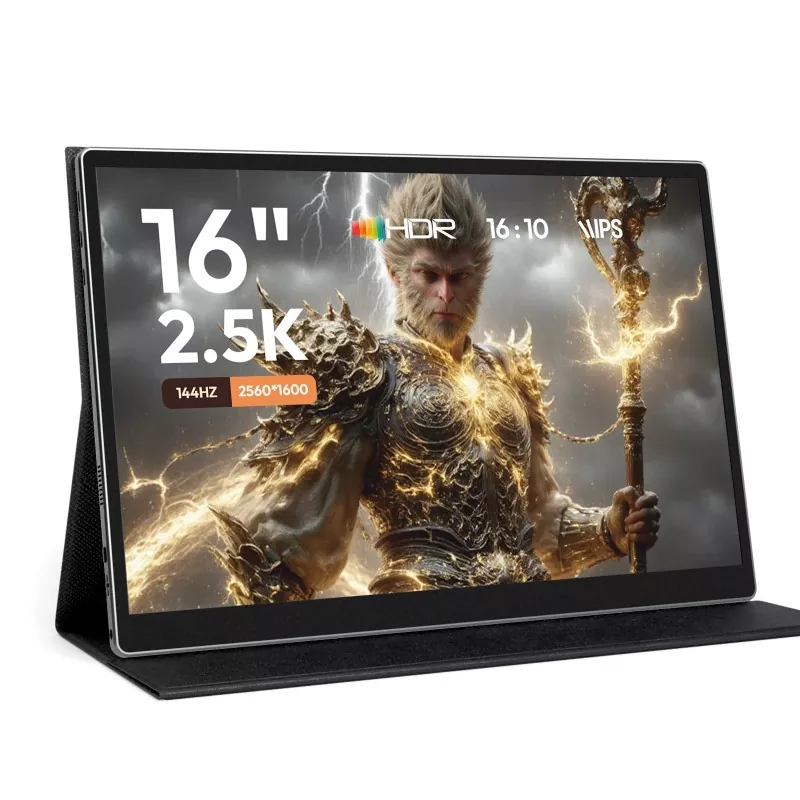
16 Inch Portable Monitor

  • Use the cover correctly: Treat it like a laptop lid. Close it before moving, even across the room.
  • Clean gently: A soft microfiber cloth is usually enough. Avoid harsh cleaners that can damage coatings.
  • Avoid pressure in backpacks: Don’t pack it against bulky chargers without a protective layer.
  • Keep cables organized: Loose cables rubbing against the screen is a quiet way to create tiny scratches over time.

FAQ

Q1: Will a 16-inch portable monitor work with any laptop?
A: It will work with most laptops, but the connection method matters. Many modern laptops support USB-C video output, while others require HDMI. The safest approach is choosing a monitor that gives you more than one connection option and keeping the right cables on hand.

Q2: Can I power a portable monitor from a power bank?
A: Often yes, as long as the power bank can supply stable output. If you notice dimming or flicker, switch to a stronger adapter or a higher-capacity bank designed for consistent power delivery.

Q3: Is 16 inches too big to travel with?
A: For most people, it’s still very travel-friendly. The trade-off is worth it if you do real work on the go—especially spreadsheets, writing, coding, or multitasking-heavy roles.

Q4: Why does USB-C work for charging but not for display?
A: USB-C is a connector shape, not a guarantee of video capability. Some USB-C ports are power-only. You need your device to support video output over USB-C, or you should use HDMI for video instead.

Q5: Do I need a special cable?
A: You may. Some USB-C cables are made for charging only. If you want a one-cable setup, use a cable that supports video/data properly. Keeping a known-good spare cable is a smart move.

Q6: Is a portable monitor good enough for design work?
A: It depends on what “design work” means for you. For layout review, presentations, and general brand checks, it can be very helpful. For color-critical production tasks, you’ll want to confirm panel characteristics and consider calibration habits.


Next step

If you’re choosing a 16 Inch Portable Monitor for travel, hybrid office setups, or team procurement, the smartest move is matching connectivity, power plan, and stability to how you actually work—not how a spec sheet sounds. Shenzhen Sixing Technology Holding Co., Ltd. supports portable monitor selection across common business scenarios, from single-user productivity to multi-device environments. Tell us your device models and usage needs, and we’ll recommend a practical configuration and cable plan—contact us to get a fast, no-nonsense suggestion that saves you time and avoids returns.

Related News
Leave me a message
X
We use cookies to offer you a better browsing experience, analyze site traffic and personalize content. By using this site, you agree to our use of cookies. Privacy Policy
Reject Accept