News

Why Choose an 18.5 Inch Portable Monitor for Work and Play?

2026-01-12 0 Leave me a message

Article Summary

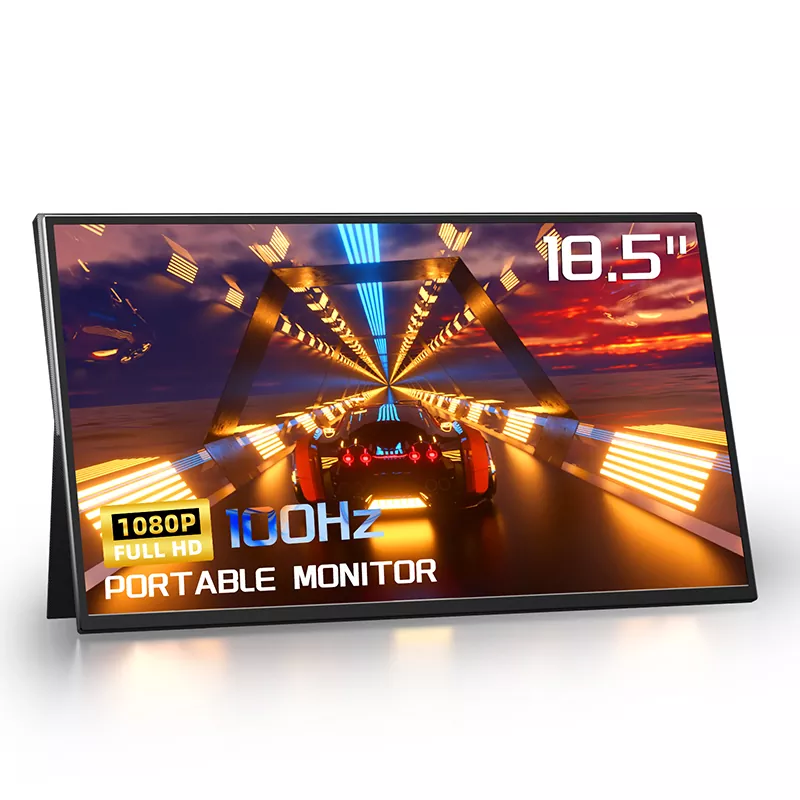
If you’ve ever tried to finish a report, edit a presentation, or keep a video call open while you reference documents on a single laptop screen, you already know the pain: constant window switching, cramped timelines, and “Where did that tab go?” fatigue. An 18.5 Inch Portable Monitor is one of the simplest ways to add real screen space without committing to a full desktop setup.

In this guide, I’ll walk through the most common buyer frustrations—compatibility confusion, cable clutter, screen flicker, eye strain, and “Is it actually portable?” worries—and show you what to check before you buy. I’ll also share practical setup tips and a decision table that makes it easy to choose the right configuration for travel, business work, and gaming.


Table of Contents


Outline at a Glance

  1. Identify the pain points (productivity, travel, gaming, eye comfort).
  2. Understand why an 18.5-inch screen changes your workflow.
  3. Use a pre-purchase checklist (ports, power, panel quality, refresh rate, speakers).
  4. Match features to your scenario using the decision table.
  5. Set it up cleanly and fix common issues fast.

What Problems Does an 18.5-Inch Portable Monitor Actually Solve?

Let’s be honest: most people don’t wake up thinking, “I want to carry an extra screen.” They buy one because something is consistently annoying. Here are the top frustrations I hear—and how a well-chosen 18.5 Inch Portable Monitor addresses them.

  • Too much window switching: A larger second screen lets you keep your call on one display and your work on the other—no more hunting for the right window mid-meeting.
  • Small laptop panels feel cramped: Spreadsheets, timelines, dashboards, and editing tools benefit instantly from extra width and height.
  • Travel setups are unstable: Hotel desks are tiny. A portable monitor that’s slim and quick to set up can turn “barely functional” into “actually comfortable.”
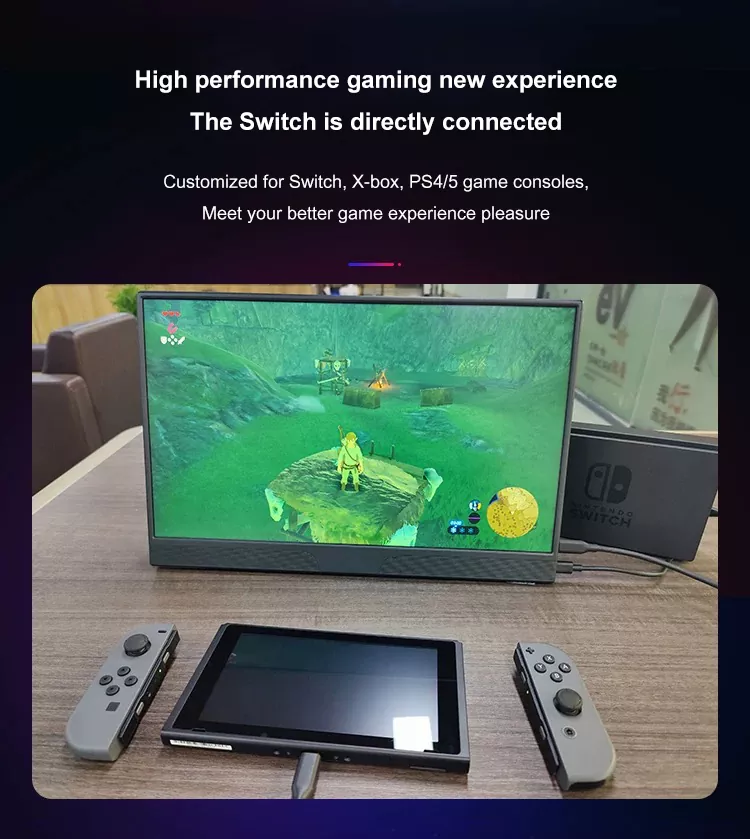
  • Console gaming on the go is awkward: If you travel with a PS5/PS4, Xbox, or Switch dock, a portable screen gives you a consistent experience without fighting for the TV.
  • Eye fatigue after long sessions: Features like anti-glare surfaces, low blue light modes, and flicker-reduction can make long workdays feel less brutal.

At Shenzhen Sixing Technology Holding Co., Ltd., we see this pattern constantly: people don’t just want “a second screen.” They want a cleaner, faster, less tiring way to work and unwind—without turning their bag into a suitcase.


Why 18.5 Inches Hits a Sweet Spot for Many People

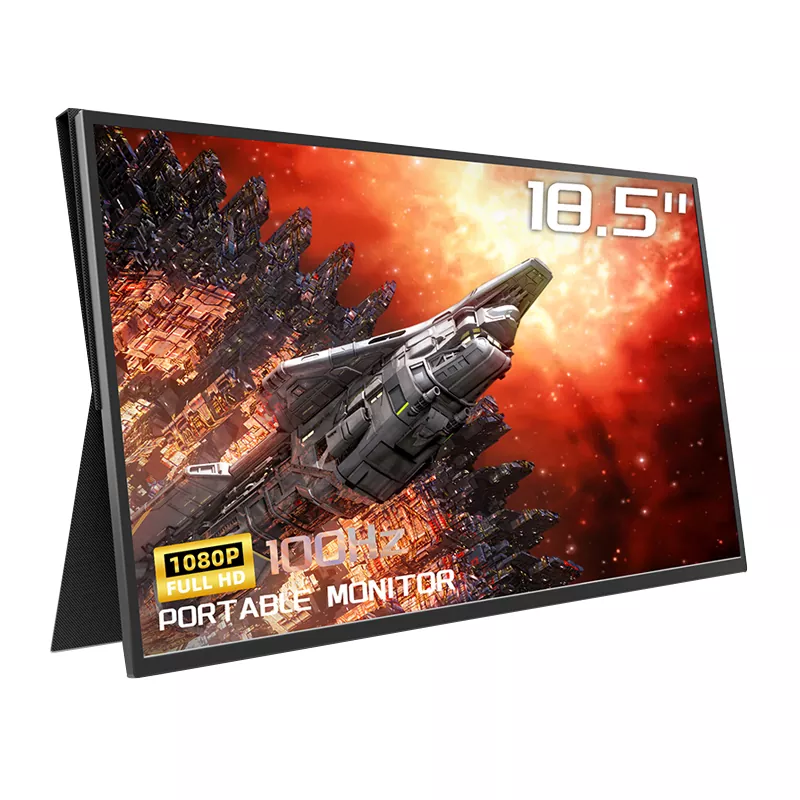
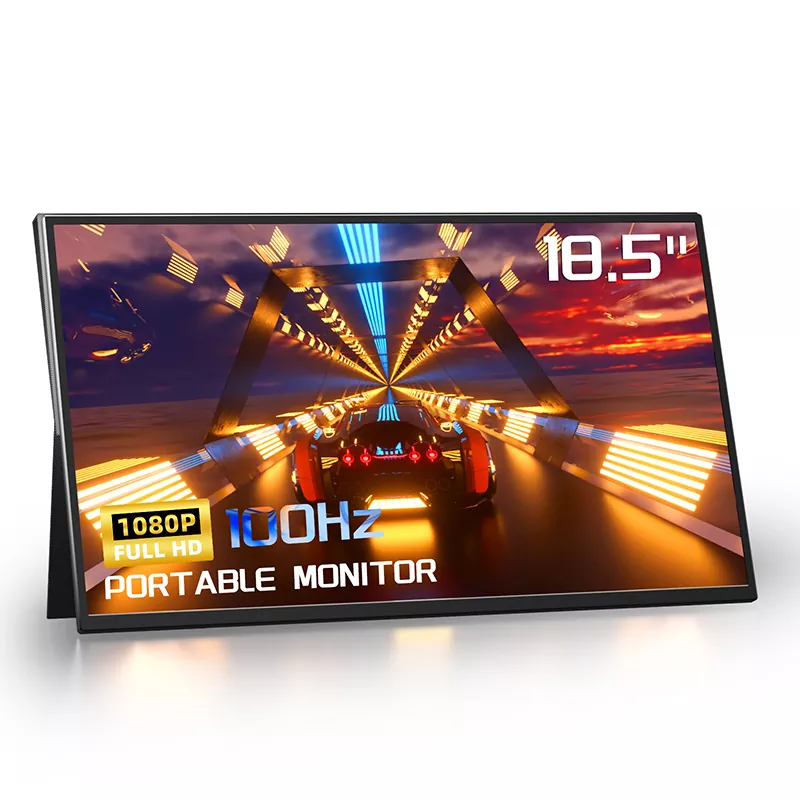
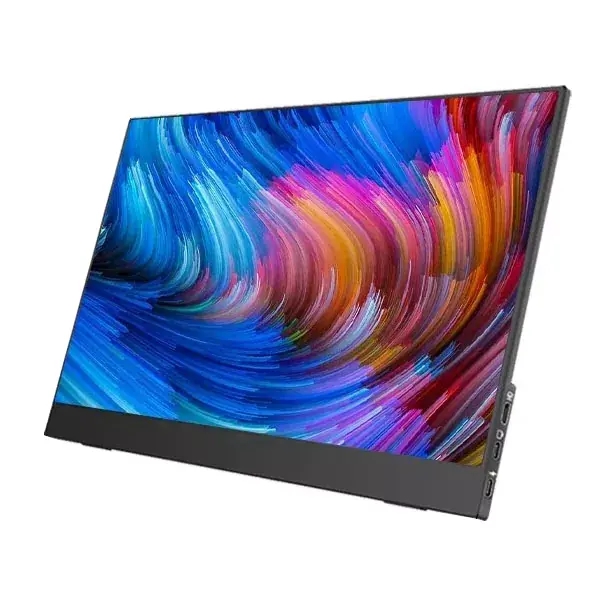
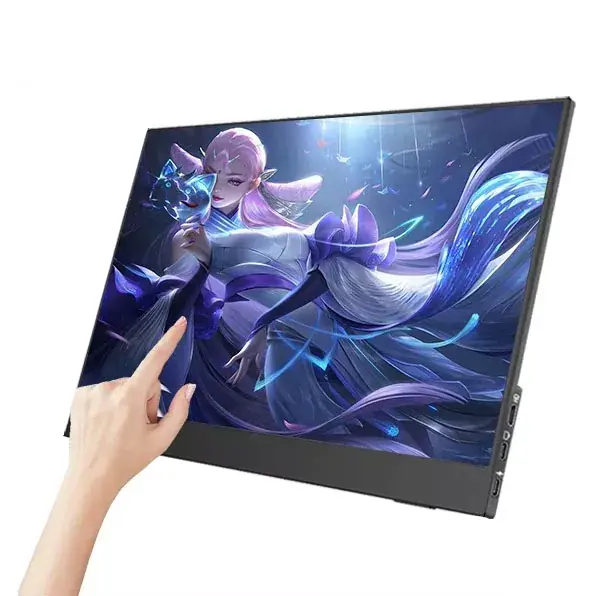
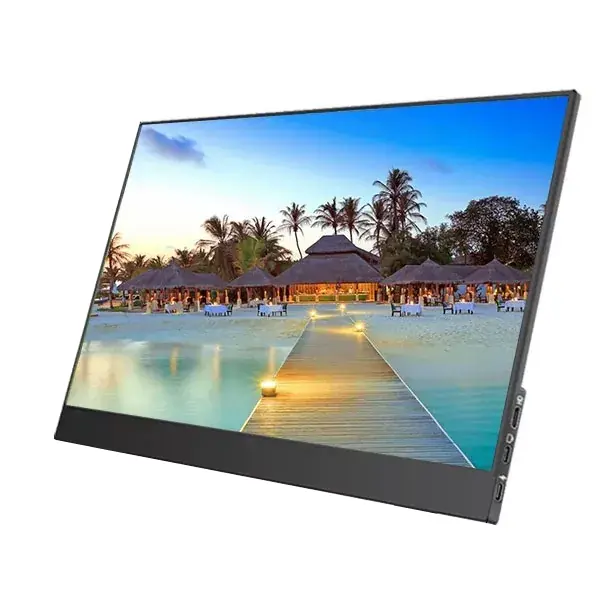
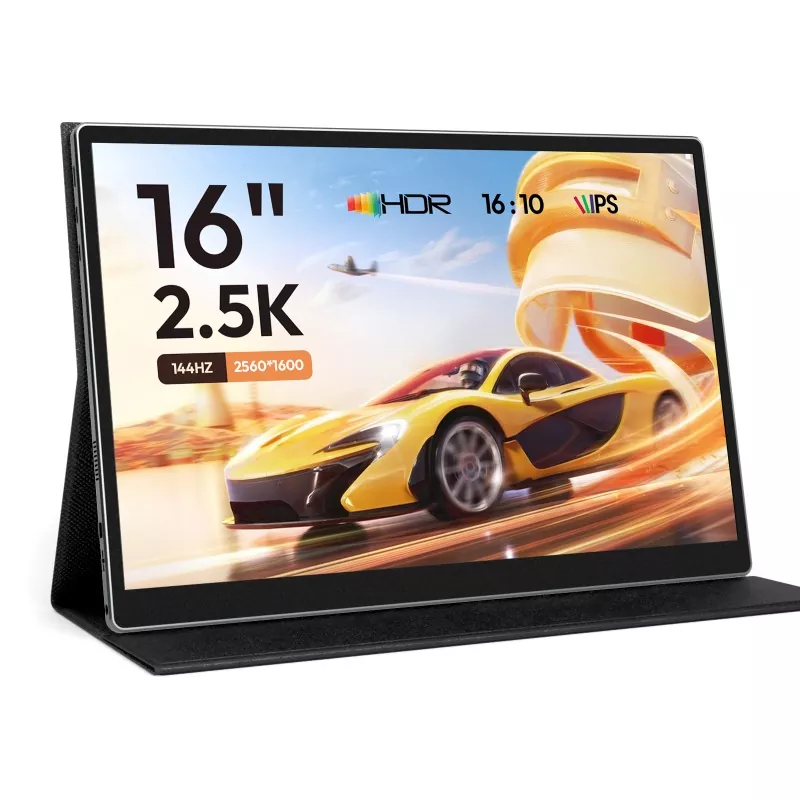
18.5 Inch Portable Monitor

Portable monitors come in many sizes, but 18.5 inches is a practical “middle ground” that often surprises first-time buyers. It’s big enough to feel like a real workspace, but still manageable for travel when designed with slim materials and a protective cover.

  • More usable screen area: You gain a noticeable jump in comfort over 15.6-inch models, especially for spreadsheets, side-by-side docs, and editing timelines.
  • Better viewing distance flexibility: On a desk, you can sit back slightly and still read comfortably.
  • Smoother motion can matter more than you think: A higher refresh rate (for example, 100Hz on some 18.5-inch models) makes scrolling and cursor movement feel cleaner—not just games.
  • Portable by design, not by compromise: Some 18.5-inch builds are engineered to be travel-friendly (for example, around 0.3 inches thin and roughly 2.4 lb depending on configuration), which is very different from “I guess I can carry it if I suffer.”

The key is not the number on the box—it’s whether the monitor is designed for stable placement, simple cabling, and reliable power. That’s where most bad experiences come from, so let’s fix that next.


What Should You Check Before Buying an 18.5 Inch Portable Monitor?

This checklist is built from real buyer pain. If you only skim one section, skim this one.

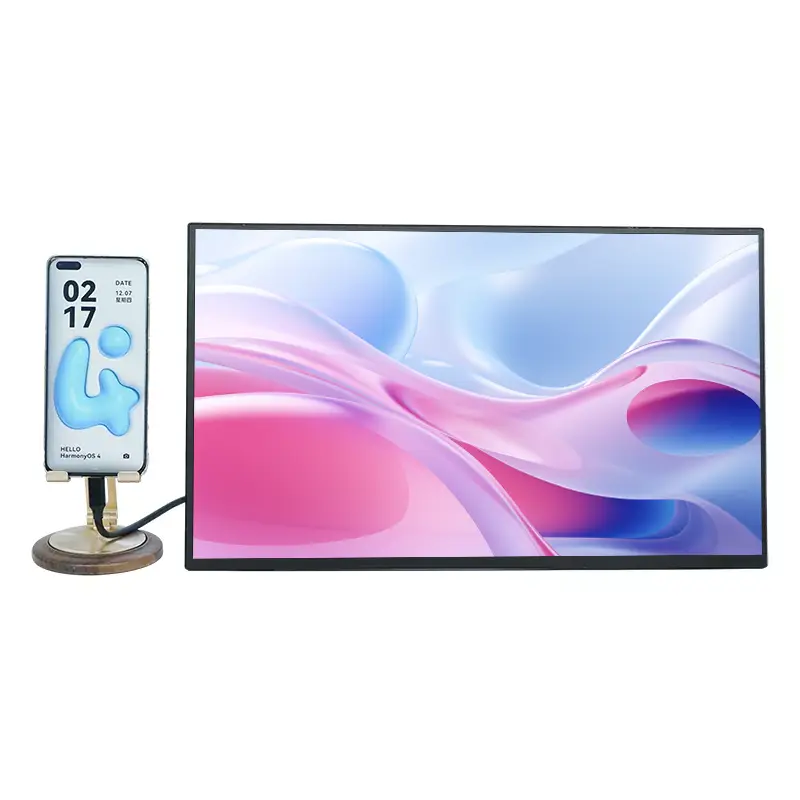
  • Does your device support video over USB-C? Not every USB-C port carries video. Look for “full-featured USB-C” or Thunderbolt support on your laptop/tablet/phone. If not, you’ll need HDMI.
  • Port selection that matches your life: Many 18.5-inch models use two USB-C ports plus HDMI (often mini HDMI). This is useful because you can run one USB-C for video and use the other for power when needed.
  • Power stability (the secret villain): Screen flicker and random disconnects are often power issues, especially with phones or low-power laptop ports. A monitor that supports external power input (and a good adapter) saves you headaches.
  • Panel quality and color: If you do design work, product photos, or content creation, check for wide color coverage (for example, 100% sRGB on some models) and an IPS panel for consistent viewing angles.
  • Refresh rate and response feel: A 100Hz refresh rate can improve perceived smoothness for both gaming and daily work (scrolling long pages, moving windows, switching apps).
  • Comfort features: Anti-glare finishes, low blue light modes, and flicker reduction aren’t marketing fluff if you work long hours.
  • Audio expectations: Built-in speakers are convenient for quick videos or calls. For serious sound, you’ll still want headphones or external speakers—think of built-ins as “good enough in a pinch.”
  • How it stands up (literally): Check the included cover/stand stability. The best specs won’t help if the screen wobbles every time you type.

Buyer Decision Table

Use this table to match your main pain point to the feature that actually fixes it.

Your main frustration What to prioritize Why it matters Quick tip
Laptop screen feels too small 18.5-inch size + FHD resolution Comfortable split-screen work without constant resizing Use extended desktop mode instead of mirroring
Cable mess and slow setup USB-C single-cable support + extra USB-C for power Cleaner desk and faster “open-and-go” workflow Confirm your USB-C port supports video output
Flicker or random black screens Stable power input options Many “defects” are actually power shortages If it flickers, try external power first
Motion feels choppy Higher refresh rate (e.g., 100Hz) Smoother scrolling and cleaner gaming movement Match your device output settings where possible
Eye strain after long sessions Anti-glare + low blue light + flicker reduction More comfortable viewing for work marathons Lower brightness and increase font scaling

How Do You Set Up an 18.5 Inch Portable Monitor Without Stress?

A good 18.5 Inch Portable Monitor should feel like a “plug it in and get to work” tool. Here’s the cleanest setup approach I recommend.

  1. Start with USB-C (if your device supports video): Connect USB-C to USB-C. If the screen powers and displays, you’re done.
  2. If the screen lights up but flickers: Add external power to the monitor (use the second USB-C port if available). Power problems are the #1 cause of “mystery issues.”
  3. If you get no image over USB-C: Your USB-C port may be data-only. Switch to HDMI (often mini HDMI on portable monitors) for video, and use USB-C for power.
  4. Set display mode: On your laptop, choose “Extend” for true multi-screen productivity. For presentations, “Duplicate” can be useful.
  5. Adjust comfort settings: Turn on low blue light mode at night, lower brightness indoors, and use anti-glare positioning (avoid direct overhead reflections).

Quick troubleshooting checklist (the “don’t panic” version):

  • No signal: confirm the correct input source (USB-C vs HDMI) and re-seat the cable.
  • Flicker: add external power; try a shorter or higher-quality cable.
  • Blurry text: set resolution to 1920×1080 (for FHD models) and enable display scaling if needed.
  • No sound: check your device audio output selection; built-in speakers may require selecting the monitor as the audio device.

Where Does an 18.5 Inch Portable Monitor Make the Biggest Difference?

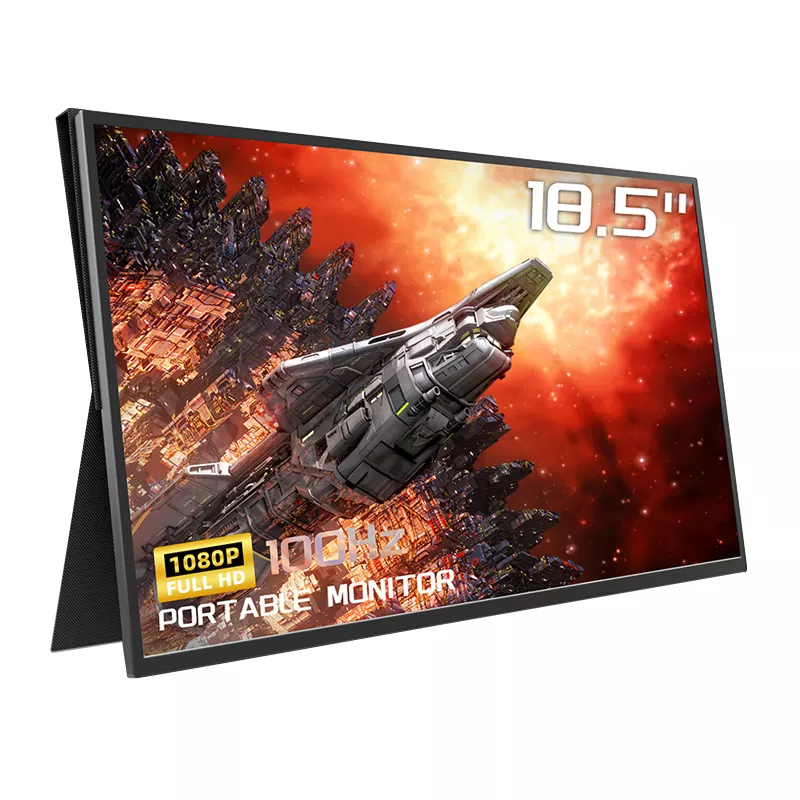
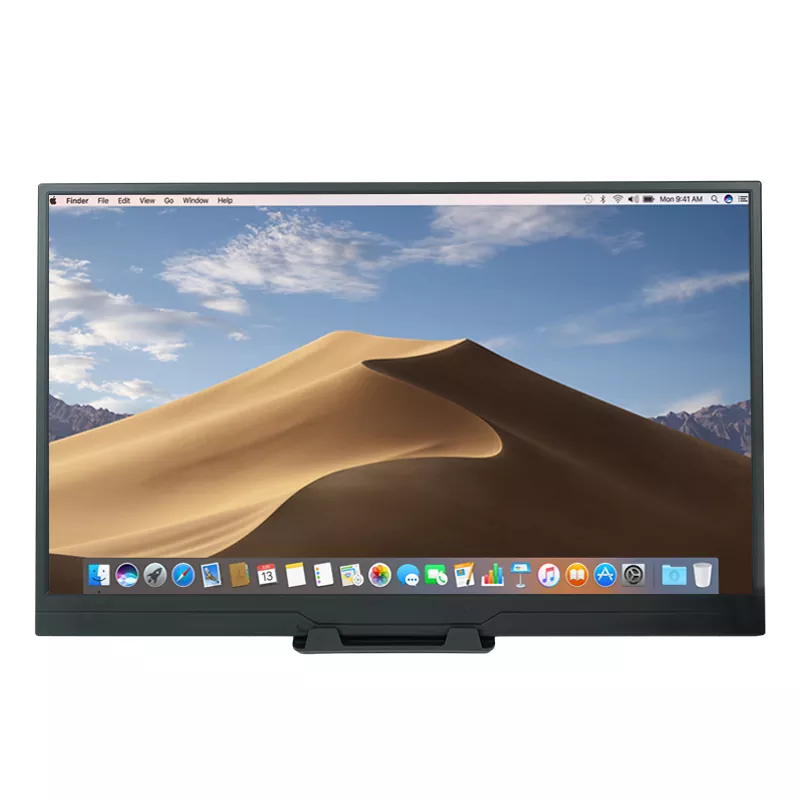
18.5 Inch Portable Monitor

Here are the scenarios where buyers typically feel the “I should’ve done this earlier” effect.

  • Business travel and hotel desks: An 18.5-inch screen gives you a real working canvas for documents, dashboards, and presentations—without hunting for a business center or borrowing a meeting room TV.
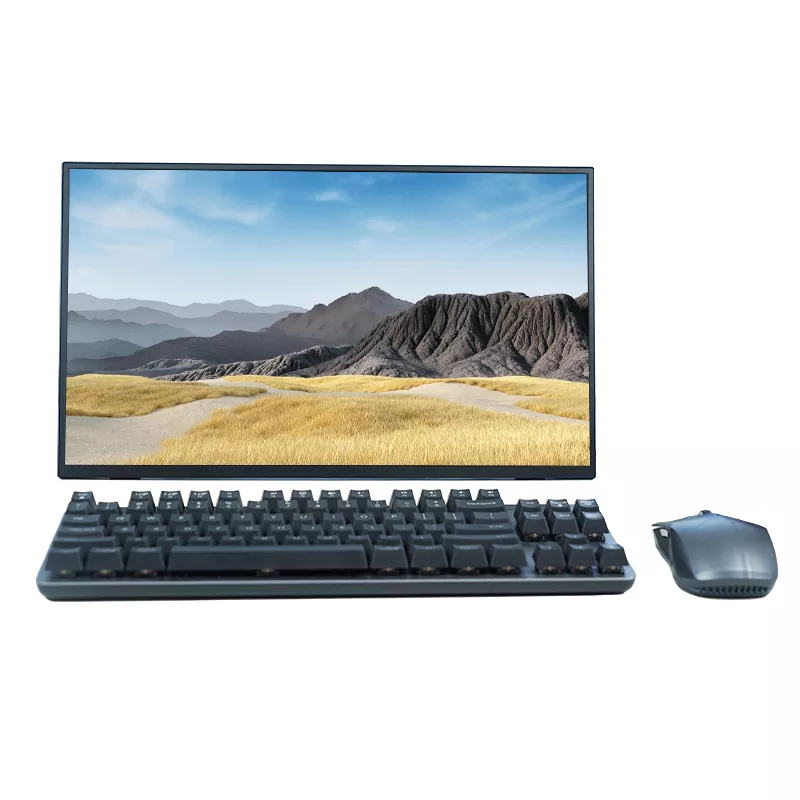
  • Hybrid work and home setups: If you move between rooms (or between home and office), a portable monitor lets your “two-screen brain” follow you.
  • Sales demos and client meetings: You can keep notes on your laptop and show the content on the portable screen, or use it as a second display for smoother presenting.
  • Content creation on the go: IPS panels and wide color coverage (when available) are helpful for photo selection, layout checks, and video editing timelines while traveling.
  • Console gaming without fighting for a TV: With HDMI input and solid refresh performance, it can be a simple way to keep your gaming consistent in dorms, rentals, and shared spaces.

If your day includes any mix of calls, documents, and quick device switching, an 18.5 Inch Portable Monitor is less of a “nice-to-have” and more of a sanity upgrade.


FAQ

Will an 18.5-inch portable monitor work with my laptop using one cable?
Yes—if your laptop’s USB-C port supports video output (often listed as full-featured USB-C or Thunderbolt). If not, you can still use HDMI for video and USB-C for power.

Why does my portable monitor flicker when I connect it to a phone or certain laptops?
In many cases, it’s not a defective screen—it’s insufficient power. Try powering the monitor with an external adapter (or a second USB-C power connection if your monitor supports it) and use a quality cable.

Is 100Hz really useful outside gaming?
For many people, yes. A higher refresh rate can make everyday scrolling and window movement look smoother and feel less “draggy,” especially during long work sessions.

Is 18.5 inches too big to travel with?
It depends on the design. Some 18.5-inch models are built slim and travel-friendly, with a protective cover and a stable stand approach. If you travel often, prioritize thinness, weight, and how the monitor is protected in a bag.

Can I use it with a PS5, PS4, Xbox, or Switch dock?
If the monitor has HDMI input, it can typically connect to consoles like these. For the best experience, make sure you have the right cable format (for example, standard HDMI to mini HDMI if required).

Do built-in speakers replace my headphones?
Built-in speakers are great for quick videos, calls, and casual use. For immersive gaming, music, or noisy environments, headphones or external speakers are still the better option.


Next Steps

If you’re choosing an 18.5 Inch Portable Monitor, don’t overthink it—just be strict about the basics: the right ports for your devices, stable power options, and a panel that won’t punish your eyes after two hours. Once those boxes are checked, you’ll feel the upgrade every single day.

Want help matching the right 18.5-inch configuration to your laptop/phone/console setup, your travel routine, and your typical workspace? Contact us with your device models and use case, and we’ll recommend a practical option and cabling plan you can rely on—no guesswork, no wasted time.

Related News
Leave me a message
X
We use cookies to offer you a better browsing experience, analyze site traffic and personalize content. By using this site, you agree to our use of cookies. Privacy Policy
Reject Accept