News

Why 14 Inch Portable Monitors Are the Sweet Spot for Travel and Hybrid Work?

2026-01-15 0 Leave me a message

Abstract: 14 Inch Portable Monitors have quietly become the “just right” choice for people who want a second screen without turning their bag into a gym session. This guide breaks down the real problems buyers face—dim screens, shaky connections, fragile builds, confusing power needs—and shows you how to pick a monitor that actually fits your workflow. You’ll get a practical checklist, a comparison table, setup tips, care advice, and an FAQ to help you decide with confidence.


Table of Contents


Outline

  1. Identify what usually goes wrong when buying portable monitors
  2. Use a short, non-negotiable checklist before you compare prices
  3. Understand ports, cables, and power so you avoid “no signal” misery
  4. Choose the right panel and brightness for your environment
  5. Set it up quickly and keep it safe long-term

Common Buyer Pain Points

People don’t buy 14 Inch Portable Monitors because they love shopping for screens. They buy them because they’re trying to fix a problem—usually productivity, mobility, or both. Here are the pain points that show up again and again:

  • “It looks great online, but it’s too dim in real life.” Hotel lighting, cafés, and bright offices can expose low-brightness screens fast.
  • “My laptop has USB-C, but it still won’t display.” Not all USB-C ports carry video (some are data-only). This is the #1 compatibility trap.
  • “It works… until I plug in another accessory.” Power draw, hub quirks, and cable quality can create random flickers and dropouts.
  • “The stand is wobbly.” A portable monitor is only as useful as its stability—especially on a plane tray table or a crowded desk.
  • “The colors feel off.” Designers, marketers, and editors often need consistent color and viewing angles, not “close enough.”
  • “I’m worried it’ll crack in my bag.” Thin devices are great until they meet a backpack corner, a water bottle, and gravity.

Quick reality check: The “best” portable monitor is the one that matches your devices, your lighting, and your daily routine. A cheap screen that fails on day 10 is not actually cheap.


A Practical Buying Checklist

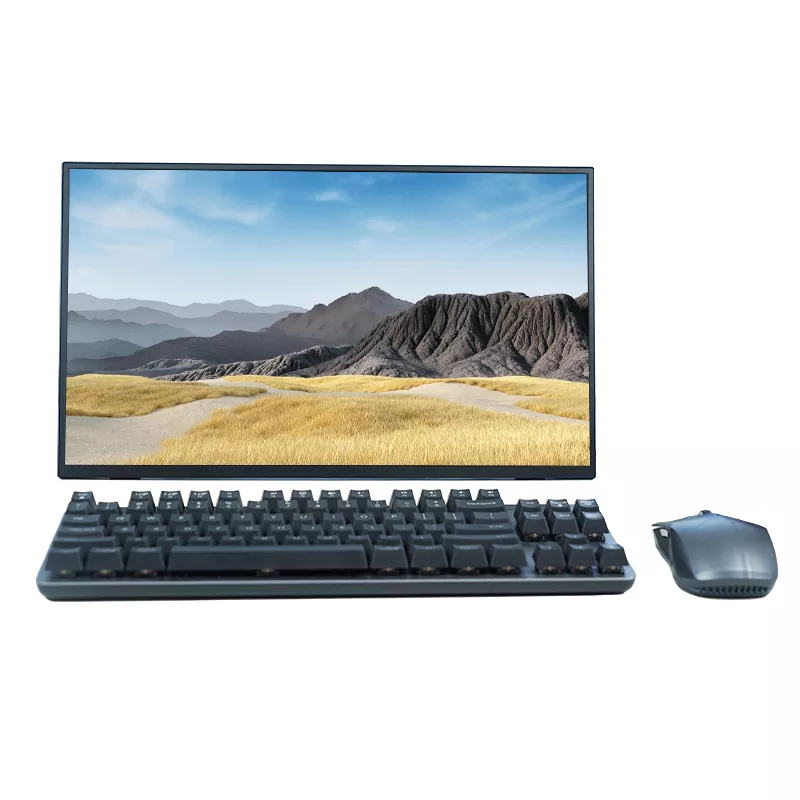
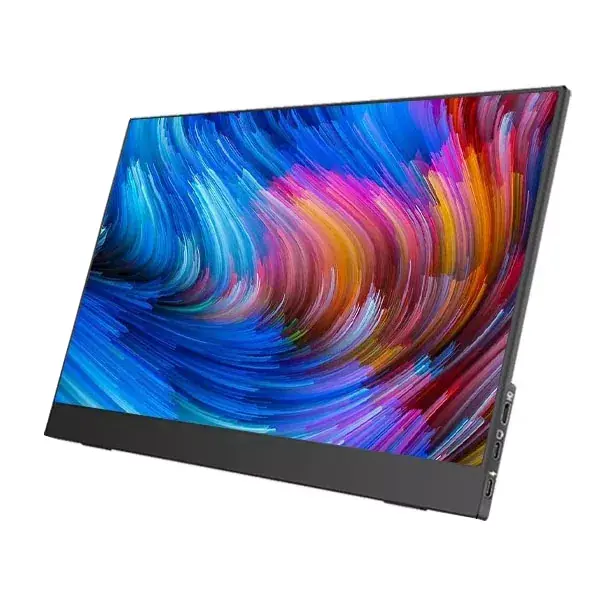
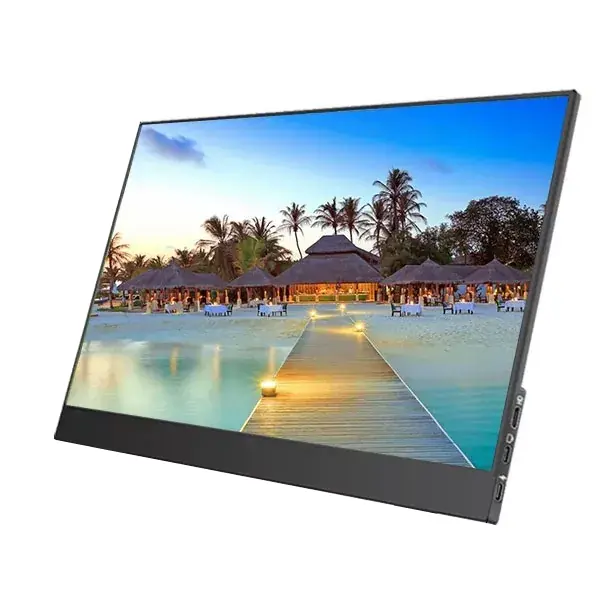
14 Inch Portable Monitors

Before you compare models, decide what you must have. The checklist below is designed to prevent the most common regret purchases.

What to Check Why It Matters Good Target for Most Users
Video over USB-C Enables one-cable setup (video + power) on compatible laptops/phones. USB-C with DP Alt Mode support (confirm your device too).
HDMI option Helps with older laptops, consoles, and “USB-C isn’t video” situations. Mini HDMI or HDMI + included cable.
Brightness Determines whether the screen is usable outside dim rooms. Look for a model positioned for bright environments if you travel often.
Panel type & viewing angles Better viewing angles reduce color shift and eye strain. Wide viewing angles; consistent image when you tilt it.
Stand/cover design Stability affects comfort and reduces “screen wobble” fatigue. Magnetic cover stand or sturdy kickstand with multiple angles.
Weight & thickness Portability is the whole point—too heavy defeats the purpose. Light enough to carry daily without thinking about it.
Audio & controls Speakers and easy OSD controls make quick use less annoying. Simple brightness/volume access; speakers if you do calls.

If you want a shortcut, prioritize these three first: compatibility (your ports), brightness (your environment), and stand stability (your surfaces).


Connectivity and Power Made Simple

Most frustration with 14 Inch Portable Monitors isn’t about the screen—it’s about the cable and the port. Here’s the simplest way to think about it:

  • USB-C (one-cable dream): Works when your device’s USB-C supports video output. If it does, you can often run video and power through one USB-C cable.
  • USB-C (power only): Some USB-C ports only provide charging/data. In that case, you’ll need HDMI for video and USB for power.
  • HDMI (safe and familiar): Great for laptops, consoles, and mini PCs. You usually still need a separate power source.

Tip: If you see “No Signal,” don’t panic. Test a different cable first (video-capable USB-C cables are not all the same). Then test another port or switch from USB-C video to HDMI video.

Power is the second trap. A portable monitor may pull enough power that some laptops or phones struggle—especially at high brightness. If your screen flickers or disconnects, it might not be “broken”; it might be underpowered. Using a stable wall adapter or a power bank designed for consistent output can solve that instantly.


Image Quality, Comfort, and Daily Use

A 14-inch screen is small enough to carry everywhere, but large enough to matter—if it’s comfortable to look at for hours. Here’s what affects daily comfort the most:

  • Readable text: Choose a resolution that keeps text sharp without forcing you to squint. If you do a lot of spreadsheets or editing, clarity matters.
  • Glare control: If you move between rooms (or outdoors), reflections can be more annoying than low resolution.
  • Color consistency: Creators should look for better color stability and viewing angles, especially if you rotate the monitor portrait-style.
  • Brightness range: A screen that gets bright enough for day use but can dim at night is easier on your eyes.
  • Controls that don’t fight you: Quick access to brightness, input switching, and volume is a quality-of-life feature you’ll appreciate on day two.

Also, don’t ignore ergonomics. The best portable monitor is the one you can place at a comfortable height and angle. If your neck is bent forward all day, you’ll “save” time on multitasking and then pay it back in tension headaches.


Best-Fit Scenarios for 14-Inch Screens

So when do 14 Inch Portable Monitors really shine? Here are the scenarios where they tend to feel like an instant upgrade:

  • Hybrid work and travel: Keep email/chat on one screen and your main work on the other. Less window switching, fewer mistakes.
  • Sales, support, and operations: Dashboards on one side, notes and CRM on the other. Faster updates, fewer “where did that tab go?” moments.
  • Developers and analysts: Code on the main screen, docs/logs on the portable screen. The extra space reduces mental load.
  • Designers and editors: Timeline or tools on the second screen while your canvas stays clean on the primary display.
  • Gaming on the go: Great for consoles or handheld PCs when a TV isn’t available. HDMI support becomes extra valuable here.
  • Students: Research on one display, writing on the other—especially useful in tight dorm or library setups.

If you’re unsure: Ask yourself one question—what window do you keep opening and closing all day? That window is usually the perfect job for a second screen.


A 5-Minute Setup Routine

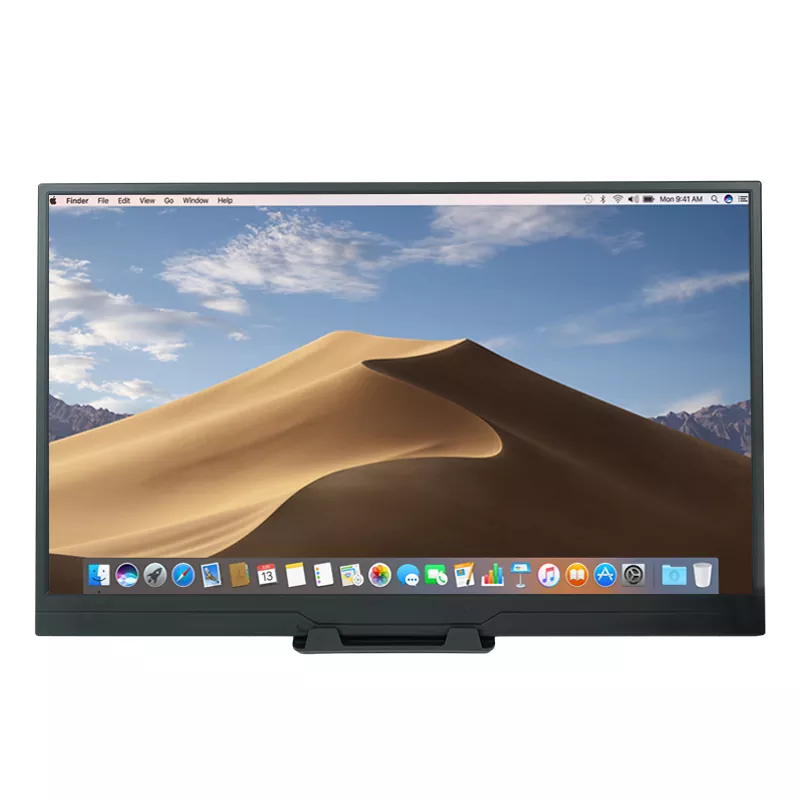
14 Inch Portable Monitors

Once you get your monitor, this routine helps you avoid the common setup traps:

  1. Start with the simplest connection. Try USB-C to USB-C first (if your laptop supports USB-C video).
  2. If there’s no image, switch methods. Move to HDMI for video and USB for power.
  3. Set your display mode. On Windows: Duplicate vs Extend. On macOS: Arrangement and scaling.
  4. Adjust brightness early. Many people blame “bad color” when the real issue is the brightness being too low or too high.
  5. Stabilize the stand angle. A solid angle reduces wobble and makes the screen feel “built-in,” not temporary.
  6. Pack smart. Put the monitor in a sleeve or against a flat surface in your bag to reduce flex pressure.

Pro tip: Keep a known-good cable in your bag. It’s the cheapest way to prevent “tech betrayal” during important meetings.


How Shenzhen Sixing Technology Holding Co., Ltd. Thinks About Portable Displays

At Shenzhen Sixing Technology Holding Co., Ltd., the goal with 14 Inch Portable Monitors is straightforward: make a screen that feels dependable in real-world use, not just impressive in a product photo.

  • Practical compatibility first: Buyers shouldn’t need a detective license to connect their devices. A good portable monitor line supports common workflows (one-cable setups where possible, plus fallback options for broader device coverage).
  • Travel-minded design: A portable display should be easy to carry, quick to set up, and stable on everyday surfaces like hotel desks and shared workstations.
  • Consistency you can trust: For business users, uniform performance matters—brightness stability, reliable inputs, and controls that make sense.
  • Flexible options: Different users care about different features—some want a lighter daily carry, others prioritize connectivity, and some need creator-friendly display behavior. A well-planned lineup gives buyers choices without confusion.

If you’re comparing models on the market, use the checklist above to filter fast. Then focus on build quality cues—stand stability, port layout, cable reliability, and day-to-day usability. Those are the details that decide whether your monitor becomes a daily tool or a drawer ornament.


Care, Storage, and Troubleshooting

Portable monitors live a harder life than desktop monitors. A little care goes a long way:

  • Use a sleeve: Even a thin protective sleeve reduces scratch risk and pressure points in a backpack.
  • Avoid tight bends on cables: Cable strain causes signal drops more often than people realize.
  • Clean gently: Use a soft microfiber cloth; avoid harsh cleaners that can damage coatings.
  • Fix “flicker” logically: Lower brightness, test another cable, then switch power source. Many flicker issues are power-related.
  • Fix “no signal” logically: Confirm input source, test another port, then try HDMI video if USB-C video isn’t supported.

A simple rule: When something goes wrong, change one variable at a time (cable, port, power, input). It saves you from guessing.


FAQ

Q: Do 14 Inch Portable Monitors work with phones and tablets?

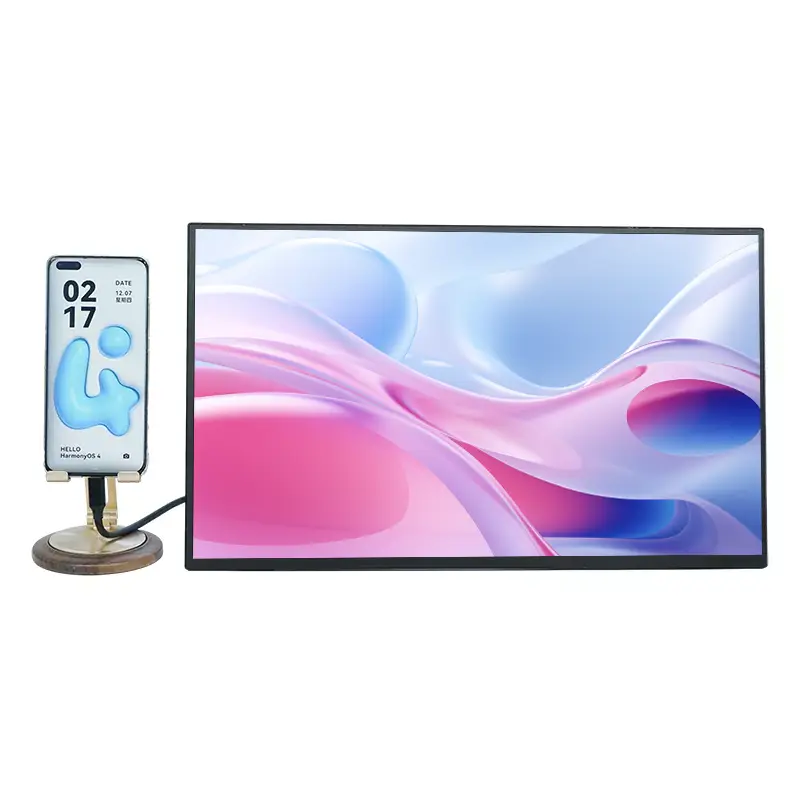
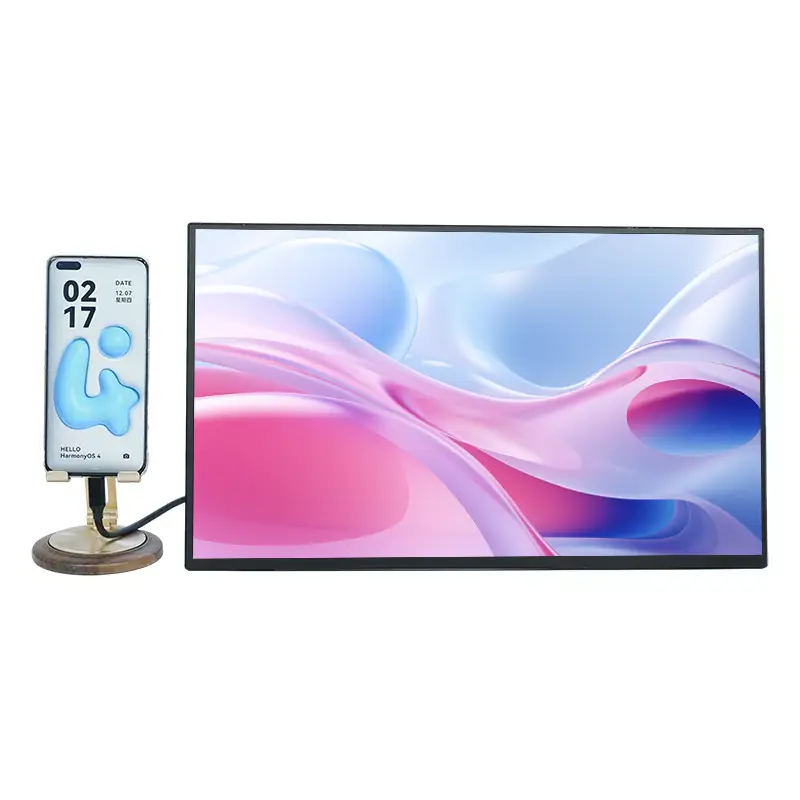
A: Many can, as long as your device supports video output through its port (often USB-C with video capability). If your phone only supports charging/data, you may need a different setup or a compatible adapter solution.

Q: Will one USB-C cable always handle both power and display?

A: Not always. One-cable setups depend on both the monitor and the device supporting video over USB-C, and on the device being able to supply enough power. If power is limited, using an external power source can stabilize performance.

Q: Is 14 inches big enough to feel like a real second screen?

A: For most people, yes—especially for chat/email, documents, dashboards, and reference material. If you want large-scale design space or heavy multitasking across multiple windows, you might consider a bigger size, but portability often drops quickly as screens grow.

Q: What should I prioritize for travel—weight or brightness?

A: If you work in bright places (airports, cafés, open offices), brightness usually matters more than shaving a small amount of weight. If you mostly work indoors with controlled lighting, a lighter carry can be the better daily win.

Q: How do I avoid buying the wrong cable?

A: Look for a USB-C cable that explicitly supports video (not just charging). If you use HDMI, keep a reliable HDMI cable plus a stable power cable. Carrying one known-good spare cable is a lifesaver.


Wrap-Up

When you choose carefully, 14 Inch Portable Monitors can feel like adding hours back to your week—less tab switching, fewer mistakes, and a calmer workflow wherever you land. Use the checklist, confirm your device ports, and prioritize the features that match your daily reality (lighting, stability, and connection style).

Ready to upgrade your setup with a dependable 14-inch portable display? Explore your options from Shenzhen Sixing Technology Holding Co., Ltd. and contact us to discuss the right model for your devices, use case, and volume needs.

Related News
Leave me a message
X
We use cookies to offer you a better browsing experience, analyze site traffic and personalize content. By using this site, you agree to our use of cookies. Privacy Policy
Reject Accept